

Inputs
Every input.* function, how inputs appear in the script settings dialog, and how to organize them with sections, rows, conditions, checks and presets.
Inputs are the settings of your script. Each input.* call adds a control to the script's settings dialog and returns the value the user chose (or your default). Good inputs turn one script into a tool many people can tune to their market and style, without ever opening the code.
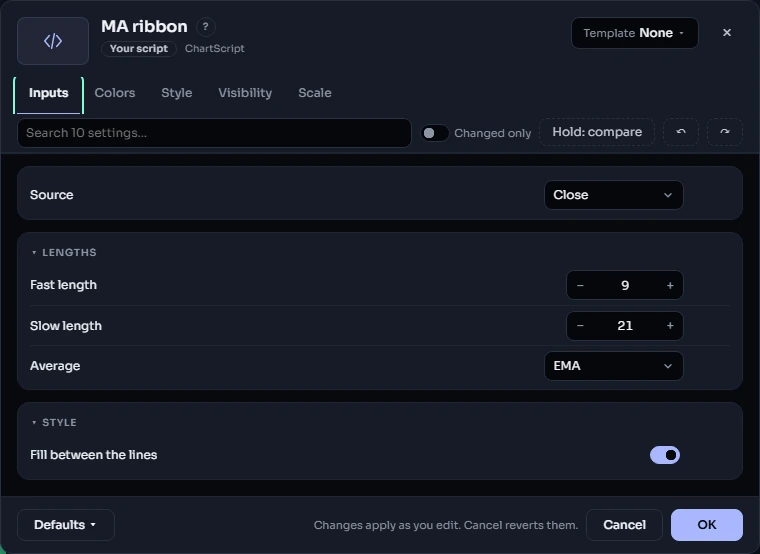
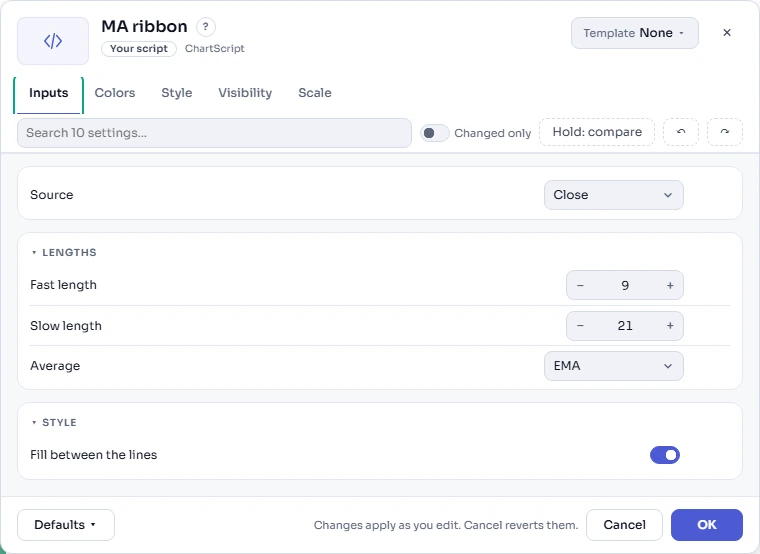
#How an input behaves
const len = input.int(20, "Length", { minval: 1, maxval: 500 })
plot(ta.sma(close, len))- The first argument is the default; the second is the title shown in the dialog.
- The value is fixed for the whole run (an
inputvalue, see series and qualifiers), which is why it can be used where a constant length is needed. - When the user changes it, the script runs again with the new value. Inputs used only for looks (a color, a line width, a show/hide switch given straight to
plot) are applied on the chart without a new run, so changing them is instant. - The value is saved per indicator on the chart, and in layouts and templates.
A script can have up to 400 inputs.
#Every kind of input
| Function | Returns | Control in the dialog |
|---|---|---|
input.int | int | number field (or slider / stepper); menu with options |
input.float | float | number field; menu with options |
input.bool | bool | check box |
input.string | string | text field (up to 200 characters); menu with options |
input.text_area | string | longer text (up to 2,000 characters) |
input.color | color | color swatch, on the Colors tab and in its section (on Style when the script has no sections) |
input.source | float series | menu: open, high, low, close, volume, hl2, hlc3, ohlc4, hlcc4 |
input.timeframe | string | timeframe menu ("" = the chart's) |
input.market | string | a VENUE:SYMBOL market id |
input.session | string | a session such as "0800-1600" (see sessions) |
input.time | int (ms, UTC) | date and time field, in UTC |
input.price | float | number field |
input.enum | your enum | menu of the enum's titles |
input.ma_type | string | menu of ChartDeck's 11 moving-average types, for ta.ma |
input.range | [float, float] | two number fields, low and high |
input.list | array<string> | chips: tick any number of options |
input.duration | int bars | text such as 30m, 4h, 2d, 1w, or 120b for bars; turned into bars on the chart's timeframe |
input.size | size | text size menu |
input.font | font | font menu |
input.linestyle | line style | solid, dashed, dotted … or a custom dash pattern |
input.textstyle | text style | size, font, weight, italic and color together |
input.shape | shape | marker shape menu |
input.position | position | one of the nine position.* places, for tables |
input.gradient | gradient | 2 to 8 color stops; read a color with gradient.at |
input.palette | palette | a named set of colors; read one with palette.get |
input | the default's type | picks the control from a constant default (int, float, bool, string, color) |
For a price source, use input.source(close, "Source"); the plain input() needs a constant default.
Number inputs take minval, maxval and step; the dialog keeps the value inside the bounds. Any of input.int, input.float, input.string, input.timeframe and input.session take options: [...], which turns the control into a menu. An enum gives you a menu whose items are checked by the compiler:
enum Mode {
    fast = "Fast",
    smooth = "Smooth"
}
const mode = input.enum(Mode.fast, "Mode")
const len = mode == Mode.fast ? 9 : 21
plot(ta.ema(close, len))#Arguments every input takes
| Argument | What it does |
|---|---|
title | the label in the dialog. Leave it out and the dialog shows the variable name; write "" and the row has no label (useful for the second and later inputs of an inline row) |
tooltip | help text shown when the pointer rests on the row |
group | a heading; inputs with the same group sit together (a section) |
inline | inputs with the same inline text share one row |
display | where the value also appears: display.all, display.none, display.status_line, display.data_window |
tab | "inputs" (default) or "style" (the default for input.color) |
role | input.color only: "up", "down", "neutral" or "accent", for the color presets (see color roles) |
confirm | accepted, and has no effect in this version |
group and inline are the quick way to organize a small script. For more control, use the settings statements below.
#Organizing the dialog
These statements run when the script is compiled, not on bars, so they go at the top level. Each one affects the inputs that follow it:
| Statement | Effect |
|---|---|
settings.tab(id, title, icon) | your own tab; your tabs replace Inputs and come before Colors and Style (up to 8) |
settings.section(id, title, collapsed, help) | a section that folds, counts its changed inputs and resets on its own; its colors are grouped under the same title on the Colors tab |
settings.row(id, title) … settings.end_row() | the inputs in between share one labeled row |
settings.note(text, kind) | a short help paragraph between inputs ("info" or "warning") |
A tab with 6 or more sections, or 30 or more inputs, gets a section list beside the inputs (a drop-down on phones), and the dialog's search box finds an input by its title, tooltip, section or options. Designing your script's settings has advice on sections, rows and color roles.
An input keeps its saved value when you move it to another section or tab, because the value is stored under the variable name. Putting a statement inside an if, loop or function is an error (CS2710), and its arguments must be constants (CS2711).
#Showing, hiding and checking
Each input also accepts these arguments:
| Argument | Effect |
|---|---|
visible_if: cond | the input shows only while cond holds; a hidden input keeps its value |
enabled_if: cond | the input is grayed out while cond is false |
validate: cond, validate_msg, severity | checked while the user types; an "error" disables OK, a "warning" only advises |
unit: unit.bars | a unit beside a number: bars minutes hours ticks percent atr price px pt |
widget: widget.slider | how a number or choice is shown: slider log_slider stepper segmented chips swatches |
snap | for an input.int, round what the user types to a whole number (default true) |
section: "id", row: "id" | place the input in a section or row declared elsewhere |
advanced | marks the row as an advanced setting |
placeholder, required | for text inputs: gray example text, and "must not be empty" |
settings.validate(cond, message, { on: [a, b], severity }) is a check across several inputs, shown under the ones listed in on.
The conditions are small formulas the dialog evaluates while the user edits, so they may only use: inputs, constants, timeframe.in_seconds(), timeframe.period, timeframe.isintraday, market.kind and chart.theme, combined with && || !, comparisons, + - * / and ?:. Anything else is error CS2712. A unit on a non-number input is CS2723.
If a saved setting fails an error-level check (say the script changed and an old value no longer fits), the indicator runs with the defaults of the inputs that check names, and the legend says so.
#Defaults that follow the chart
The default of an input.int or input.float may be a condition on the chart, so a length can suit the timeframe it is used on:
const len = input.int(timeframe.in_seconds() >= 86400 ? 50 : 21, "Length", { minval: 2 })
plot(ta.ema(close, len))
Until the user sets their own value, the dialog shows "Auto: 21 on 1h" (or whatever applies) next to the field.
#Presets, renames and translations
settings.preset(name, description, { input: value, … })adds a named set of values the user applies with one click (up to 32). Unknown input names fail with CS2715.- When you rename or remove an input in a new version,
settings.renamed,settings.remap,settings.retiredandsettings.convertedmove your users' saved values over instead of silently resetting them. i18n.add(lang, english, translated)translates the dialog's text (titles, tooltips, notes, options) for users of another ChartDeck language.
#Color inputs, the Colors tab and the Style tab
Every color input appears on the Colors tab, grouped by its section (or group), together with the color of each plot, level, fill and style; one click there applies a color preset (Default, Colorblind-safe, Monochrome, High contrast) to all of them. The same input also sits in its section on your Inputs tab or, in a script without sections or tabs, on the Style tab beside the style of each output. It is one setting shown in two places, not a copy.
Every output is restyleable anyway, whatever you wrote, so you do not need an input for each color. Add one when a color is part of the logic, or use a named style (style.plot, style.line …) so users can restyle a whole family of outputs at once. Give a color input a role when its title and hue do not say whether it means up, down or neutral:
const upCol = input.color(#2962FF, "Rising", { role: "up" })
const downCol = input.color(#FF6D00, "Falling", { role: "down" })
plot(ta.ema(close, 21), "EMA", close > open ? upCol : downCol)
See plots, colors and Designing your script's settings.
#A whole example
A band indicator with two sections, a slider, units, a condition and a cross-input check:
//@chartscript 1
indicator("Trend bands", { overlay: true })

settings.section("calc", "Calculation")
const src = input.source(close, "Source")
const maType = input.ma_type("ema", "Average type")
const len = input.int(
    timeframe.in_seconds() >= 86400 ? 50 : 21,
    "Length",
    { minval: 2, maxval: 500, unit: unit.bars, widget: widget.slider, tooltip: "How many bars the average covers." }
)
const mult = input.float(2.0, "Band width", { minval: 0.1, maxval: 10, step: 0.1, unit: unit.atr })

settings.section("look", "Display", { collapsed: true })
const showBands = input.bool(true, "Show bands")
const bandCol = input.color(color.new(color.accent, 80), "Band colour", { visible_if: showBands })
const lineW = input.int(2, "Line width", { minval: 1, maxval: 4, widget: widget.stepper })

settings.validate(
    len > 5 || mult < 5,
    "A very short average with very wide bands is hard to read.",
    { on: [len, mult], severity: "warning" }
)

const mid = ta.ma(maType, src, len)
const atr = ta.atr(14)
plot(mid, "Average", color.accent, { linewidth: lineW })
const pUp = plot(showBands ? mid + mult * atr : na, "Upper", color.muted)
const pLo = plot(showBands ? mid - mult * atr : na, "Lower", color.muted)
fill(pUp, pLo, bandCol, "Band")
And one with its own tab, a labeled row, a note, a preset and a translation:
//@chartscript 1
indicator("RSI zones")

settings.tab("main", "Main", { icon: icon.chart })
settings.note("The background is coloured while RSI is outside the band.")
const len = input.int(14, "RSI length", { minval: 2, maxval: 100 })
settings.row("zones", "Zones")
const upper = input.int(70, "Upper", { minval: 50, maxval: 100 })
const lower = input.int(30, "Lower", { minval: 0, maxval: 50 })
settings.end_row()
settings.validate(lower < upper, "Lower must be below Upper.", { on: [lower, upper] })
settings.preset("Tight", { description: "Earlier signals", upper: 65, lower: 35 })
i18n.add("de", "RSI length", "RSI-Länge")

const r = ta.rsi(close, len)
plot(r, "RSI", color.accent)
hline(upper, "Upper", color.muted)
hline(lower, "Lower", color.muted)
bgcolor(r > upper ? color.new(color.down, 85) : r < lower ? color.new(color.up, 85) : na, { title: "Outside the band" })