

Preview on chart
See your ChartScript code on the chart while you type, before saving - how the preview works, where it draws, and what a dimmed preview means.
Preview on chart runs the code that is in the editor on your chart, and updates it each time the code compiles. You see the effect of a change a moment after you type it, without saving a version or adding anything to the chart.
#Turning it on
Tick Preview on chart in the editor's tools row. On a phone it is in the ⋯ menu.
The preview draws on the active chart, the chart you last selected. If no chart is selected the editor says "Select a chart first." To preview on another chart, select that chart; the preview follows on the next compile.
To stop the preview, untick the switch, or click × on the preview's legend row. Closing the editor stops it too.
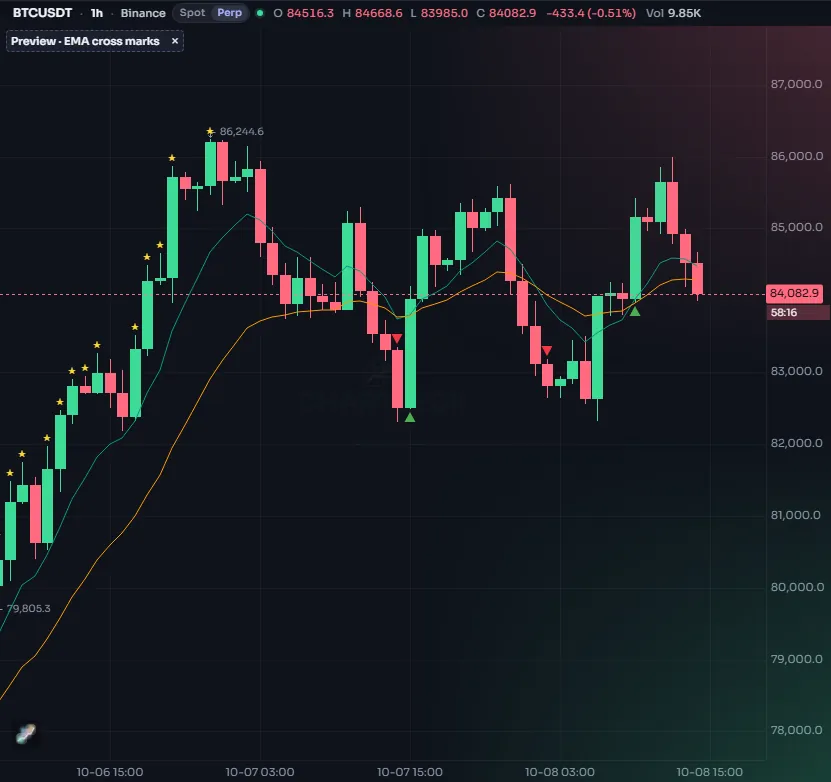
#What the preview is (and is not)
The preview is a temporary copy of your script that lives only while the editor is open:
- It runs the code in the editor, saved or not, including a brand-new script that has never been saved.
- It uses the default values of your inputs, the ones written in the code.
- It is not part of the chart's indicator list: it is not saved with your layout, does not count toward your indicators per chart, and has no settings dialog.
- It runs in your browser, like any of your own scripts.
When you like the result, save the script and Add to chart to make it a real indicator on the chart, with settings you can change.
#Where the preview draws
The preview draws where the script will draw once added:
- An overlay script (
overlay: true) draws over the candles, and its legend row sits at the top of the price pane's legend, before the other indicators. - A script that draws in its own pane gets a pane below the chart, and its legend row sits at the top-left of that pane.
The legend row reads Preview · name followed by up to four of the script's input values, for example "Preview · Two averages 10 30". The name comes from the shorttitle or the title in your indicator(...) line.
#Stale (dimmed) preview
If you type something that does not compile, the preview does not disappear. It keeps showing the last version that compiled, dimmed, and its legend row is dimmed too. That tells you at a glance that what you see is out of date. As soon as the code compiles again, the preview updates and is shown normally.
This matters while you type: half a line is usually an error, and a preview that vanished and came back on every keystroke would be hard to watch.
#Runtime errors and log output
A script can compile and still fail while it runs, for example when it reads an array element that does not exist. While the preview is on, such errors appear in the editor's Console tab with the line and the time of the bar where it happened. The messages your script writes with log.info and friends appear there too.
Try the preview with this script. It marks bars whose range is more than twice the average range, and logs each one:
//@chartscript 1
indicator("Wide bars", { overlay: true })
const length = input.int(20, "Average length", { minval: 1 })
const factor = input.float(2.0, "Factor", { minval: 0.5, step: 0.1 })
const range = high - low
const avgRange = ta.sma(range, length)
const wide = range > avgRange * factor
plotshape(wide, "Wide bar", shape.circle, location.abovebar, color.accent, { size: size.tiny })
if (wide && barstate.isconfirmed) {
    log.info("Wide bar: range " + str.tostring(range))
}
With the preview on, change factor to 3.0 in the code and watch the marks thin out.
#Tips
- Keep the preview on while you build a script, then turn it off when you start working on another chart.
- The preview and an added copy can be on the chart together. That is a handy way to compare your saved version with the change you are making.
- Heavy scripts take longer to preview, because each compile runs the script again over every bar. See Performance if the preview feels slow.