

Debugging
Find and fix ChartScript problems with the Problems tab, quick fixes, the Console, log messages, inspection plots and runtime error codes.
Scripts go wrong in two ways. Either the compiler refuses them (a compile error, found while you type), or they compile and then do something you did not expect: draw nothing, draw the wrong thing, or stop with a runtime error on some bar. This page walks through the tools the editor gives you for both, and the mistakes that cause most problems.
#The Problems tab
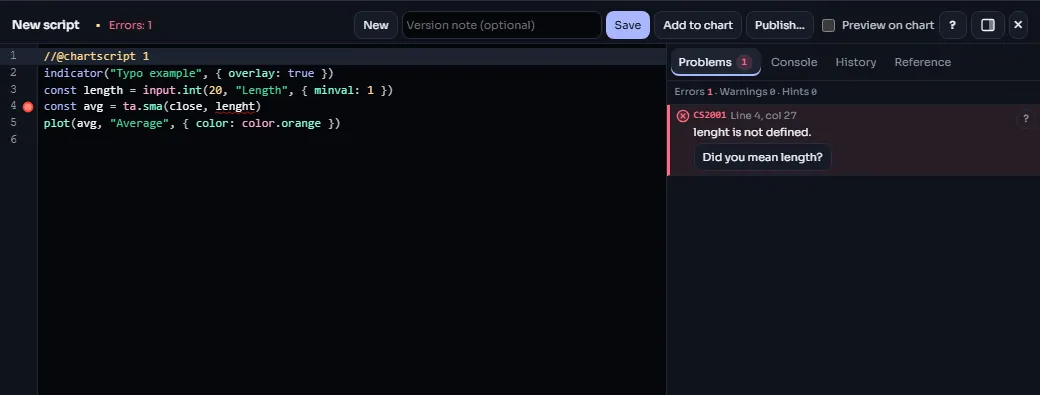
The editor checks your script about a third of a second after you stop typing. Everything it finds shows up twice:
- as a squiggle under the code, with the message when you hover it, and
- as a row in the Problems tab: the code (for example
CS2203), where it is (Line 4, col 6) and the message.
Click a row to jump to the spot. The tab carries a count badge (red when one of them is an error), and a summary line counts each kind, for example Errors 1 · Warnings 0 · Hints 0 (or says "No problems"). The ? at the end of a row opens that code's page.
There are three severities:
| Severity | Meaning | Blocks saving? |
|---|---|---|
| Error | The script cannot run as written. | Yes: fix it first. |
| Warning | It runs, but probably not the way you meant. | No |
| Hint | A note worth knowing, such as a value that could be computed more simply. | No |
Do not ignore warnings. Most of them point at a real bug: a ta.* call that skips bars because it sits inside a condition, a variable that hides another one with the same name, a request that cannot see a value. Each message says what to change.
#Error pages
Every code has its own page under Error messages with a longer explanation, an example that triggers it and the usual fix. For instance CS2203 explains why x == na is refused.
#Quick fixes
Some problems come with a fix the editor can apply for you. It shows as a Quick fix button in the Problems row and as an action on the squiggle. The fixes in this version:
| Fix | Offered when |
|---|---|
Insert //@chartscript 1 | the header line is missing |
| Did you mean ...? | a name, member or function is not known, but a close match is (a typo such as ta.eam for ta.ema) |
| Use ... | a built-in that is not available has a ChartScript replacement |
| Assign instead of declaring | a new declaration (let x = … inside a block) hides an existing variable where you probably meant to change it (x = …) |
| Declare with let | you assign to a name that was never declared |
Change const to let | you assign to a variable declared with const |
| Use state / Use let / Use live state | you wrote var or varip, which ChartScript does not use |
Use na() | you compare with na, or use a number where a condition is needed |
Here is a mistake with a quick fix. Comparing with na is always false, so the compiler refuses it and offers Use na():
const avg = ta.sma(close, 50)
plot(avg == na ? close : avg)
After the fix the line reads plot(na(avg) ? close : avg).
#The Console tab
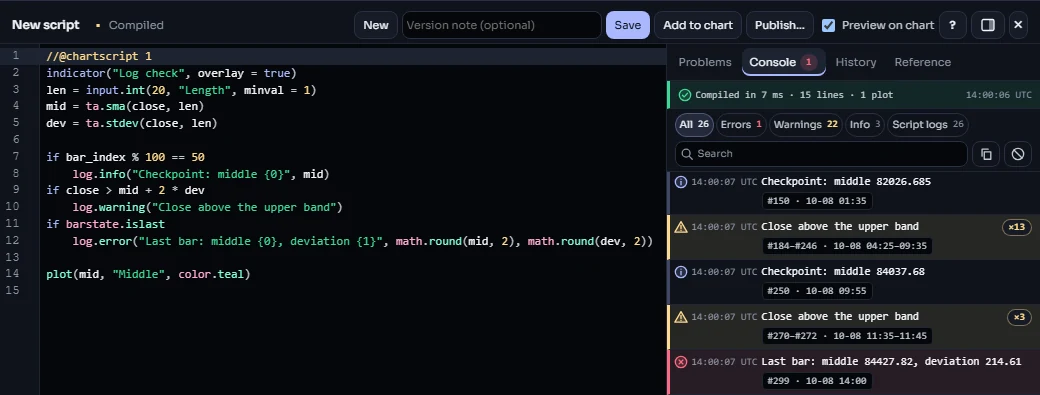
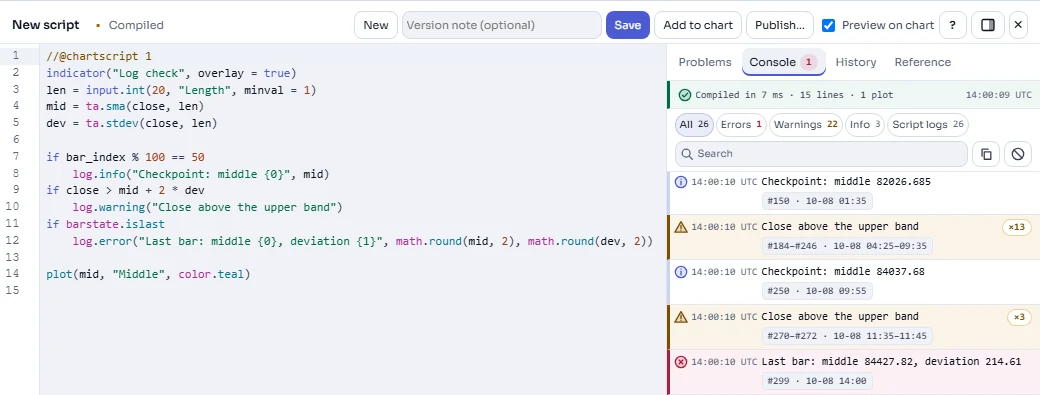
The Console tab collects messages over time, newest at the bottom. It shows:
- Your own log messages (next section), from the preview's run.
- Runtime errors of the preview, such as "Index 10 is out of range (size 3).", with a Line 17 chip that jumps to the line and a link to the error code's page.
- A divider Run · 300 bars · 2 ms at the start of each full run that logged something.
Each row has its level icon, the time it arrived (UTC), the message and a chip with the bar it came from: its number and the bar's time, for example #299 · 10-08 14:00. The same message on several bars in a row becomes one row with a count (×13) and a bar range (#184–#246). A logged array or object is shown formatted; a long one folds open.
The line above the rows says how the last compile went: "Compiled in 7 ms · 15 lines · 1 plot", or "Compiled with 2 errors" with a link to the Problems tab.
The toolbar helps when there are many lines:
- Filters All, Errors, Warnings, Info and Script logs, each with its count.
- Search marks the matching text (
/or Ctrl+F jumps to it, Escape clears it). - Copy all copies the rows that are shown, as text. Clear empties the console.
The console follows the newest line. When you scroll up to read, it stays where you are and a Jump to latest button counts the new lines. It keeps the latest 2,000 entries.
#Log messages
log.info, log.warning and log.error write a line to the Console. The first argument is the text; {0}, {1} ... in it are filled with the arguments that follow, in order. The three only differ in how the line is marked, so use them to make the important lines stand out.
Logging on every bar floods the console, so log from a condition: the last bar, a specific bar, or the moment something odd happens.
//@chartscript 1
indicator("Log check", { overlay: true })
const len = input.int(20, "Length", { minval: 1 })
const mid = ta.sma(close, len)
const dev = ta.stdev(close, len)

if (bar_index % 100 == 50) {
    log.info("Checkpoint: middle {0}", mid)
}
if (close > mid + 2 * dev) {
    log.warning("Close above the upper band")
}
if (barstate.islast) {
    log.error("Last bar: middle {0}, deviation {1}", math.round(mid, 2), math.round(dev, 2))
}

plot(mid, "Middle", color.teal)
This is the script in the picture above: a checkpoint every 100 bars, a warning on each bar that closes above the upper band (repeats collapse into one row), and the last bar as an error so it stands out.
Good to know:
- A run keeps at most 200 log messages; later ones in the same run are dropped. If you need more, log less often.
- A message is cut at 4,096 characters.
- Every full run starts the count again, and live updates run the script again on the newest bar, so a message logged on the last bar appears again with each update. Use
barstate.isconfirmedto log only once a bar has closed. - Log messages are for you. People who add your published, protected script never see them.
#Plot a value to see it
The console is good for one value at one moment. To see how a value moves across the whole chart, plot it. A temporary plot in its own pane (a script without { overlay: true }) shows at a glance where a value is na, where it jumps and where it crosses a threshold.
To read the exact numbers, hover the chart: the script's row in the chart legend shows each plot's value at the crosshair bar. A plot with { display: display.status_line } appears only in the legend and draws nothing, which is handy for a value you want to read without disturbing the picture:
//@chartscript 1
indicator("Inspect the band", { overlay: true })
const len = input.int(20, "Length", { minval: 1 })
const mid = ta.sma(close, len)
const dev = ta.stdev(close, len)
plot(mid, "Middle", color.accent)
// debug values: shown in the legend only, nothing drawn
plot(dev, "Deviation", color.muted, { display: display.status_line })
plot(bar_index, "Bar", color.muted, { display: display.status_line })
Two more tricks:
plotcharorplotshapewith a condition marks exactly the bars where it is true. Plottingbar_indexnext to it tells you which bars those are, so you can look them up in a log message.bgcolorwith a faint color shades every bar where a condition holds, which makes gaps in a condition easy to spot.
Remove debug plots (or set them to display.none) before you publish: every plot counts towards the 128-plot limit.
#Runtime errors
A runtime error stops the script at a bar. Its code starts with CS5, and you see it in the Console (while previewing) with the line and the bar's time, and in the chart legend. The common ones:
| Code | What happened | Usual fix |
|---|---|---|
| CS5001 | Your script called runtime.error. | Read your own message. |
| CS5101 | An array index is past the end (the message gives the index and the size). | Check array.size first. |
| CS5102 | A collection or object is na. | Create it before use (usually state x = array.new<float>()). |
| CS5201 | A history offset x[n] was negative or na. | Guard n before using it. |
| CS5202 | x[n] reached further back than the history kept. | Raise max_bars_back to the value the message suggests. |
| CS5301, CS5303 | A loop ran too many times on one bar. | See Performance. |
| CS5401, CS5402 | The script took too long. | See Performance. |
| CS5403 | The script used too much memory. | Keep fewer or smaller collections. |
#Stopping on purpose
runtime.error stops the script with your message. Use it for settings that make no sense together, so the member sees a clear sentence instead of a strange picture:
//@chartscript 1
indicator("Two lengths")
const fastLen = input.int(12, "Fast length", { minval: 1 })
const slowLen = input.int(26, "Slow length", { minval: 2 })
if (fastLen >= slowLen) {
    runtime.error("The fast length must be shorter than the slow length.")
}
plot(ta.ema(close, fastLen) - ta.ema(close, slowLen), "Gap")#Common runtime pitfalls
#na spreads
na means "no value". Arithmetic with na gives na, and every comparison with na is false. So one missing value early in a calculation can blank out everything after it, or make an if silently take its else branch. Averages are na until they have enough bars, and x[1] is na on the first bar.
- Test with
na(x), neverx == na. - Replace a missing value on purpose with
nz(x)(0) ornz(x, fallback). - Write guards as
!na(x) && x > y:&&stops at the first false, sox > yonly runs whenxexists.
#Division by zero
Dividing by zero does not stop the script: the result is na. That is safe, but it can hide a bug, because the na then spreads. When a zero divisor is possible (a bar with no range, a flat window, no volume), decide what the answer should be:
//@chartscript 1
indicator("Body share")
const rng = high - low
const share = rng > 0 ? math.abs(close - open) / rng : na
plot(share, "Body share of range", color.accent)#Array indexes
array.get past the end is a runtime error (CS5101), not na. Indexes start at 0, so the last element is at array.size(a) - 1. An empty array has no element 0. Check the size before you read:
//@chartscript 1
indicator("Last five closes")
state last5: array<float> = array.new<float>()
array.push(last5, close)
if (array.size(last5) > 5) {
    array.shift(last5)
}
const oldest = array.size(last5) > 0 ? array.get(last5, 0) : na
plot(close - oldest, "Change over the last five closes")#Values that change on the live bar
On the newest bar the script runs again with every price update, and everything except state variables is recalculated. A condition can be true on one update and false on the next. If a log message or a marker on the live bar seems to flicker, that is why. See Repainting for the details and the ways to only act on closed bars.
#A method that works
When a script misbehaves and the reason is not obvious:
- Clear the Problems tab first, warnings included.
- Find one bar where it is wrong. Plot
bar_indexwithdisplay.status_lineand note the bar number under the crosshair. - Plot or log every input to the wrong value on that bar, working backwards from the output. The first value that is not what you expected is where the bug is.
- Shrink the script. Comment out parts until the problem goes away; the last part you removed holds it.
- Check the reference card (F1 on a name in the editor) for the function's defaults and how it treats
na.
#See also
- Performance and Profiling for scripts that are too slow.
- Error messages for every code.
- Execution model for how a script runs bar by bar.