
Visibility and protection
The four ways to publish a script (Public or Invite-only, Open or Protected source), how protected scripts run, and managing invite-only access.
When you publish a script you make two choices: who can find and use it, and whether they can read its code. Together they give four listings. This page explains each one, what "protected" really guarantees, and how to let people into an invite-only script and out again.
The rest of publishing (the dialog, licenses, updates, copies) is on Publishing and licenses.
#The four listings
Step 2 of the publish dialog, Who can use it, asks two questions: Who can find it? (Public or Invite-only) and Can others see the code? (Open source or Protected). One line under each answer says what it means, and one sentence under both sums up the combination, for example "Anyone can find and add it; the code runs on ChartDeck's servers and stays hidden."
| Open source | Protected source | |
|---|---|---|
| Public | Public · Open | Public · Protected |
| Invite-only | Invite-only · Open | Invite-only · Protected |
The rows: the audience.
- Public: listed in the Community, in search and on your profile. Anyone signed in can add it.
- Invite-only: only members you add by @handle, or who use your invite link, can add it. By default it is not listed anywhere: for everyone else it simply does not exist. It is not in lists or search, not on your profile, and a direct link to it finds nothing. You can also choose to show it in the Community (next section).
The columns: the source.
- Open source: people who can use it can also read the source and make their own copy under your license.
- Protected source: people who can use it add it to their charts, but ChartDeck does not show them the source or let them copy it.
You can switch between any of the four at any time by opening the dialog again. Your listings in My scripts carry a badge with their current state ("Public · open", "Invite-only · protected" and so on).
#Invite-only, shown in the Community
An invite-only script can still be shown in the Community: tick Show it in the Community in step 2. Everyone then sees its card in the Community, in search, under "More by this author" and on your profile, with an Invite-only badge. The card shows its name, description, tags, likes, comments and adds, and a picture of it on a chart if you added one ("Use my chart as the picture" in step 1). Members who have not been let in never get its code or a run of it, open source or protected. Instead of Add to chart they see Request access.
You can add a short How to get access note, for example "Access is included for my course members". It is shown on the card and goes through the same text rules as the description, so it cannot hold links, contact details or @handles.
A member who clicks Request access can add a short message. You are told in your notifications, and the request waits in the script's Access panel: Let in gives them access straight away, Decline says no. Either way they are told. A member can have one request waiting per script, and can send a limited number of requests a day.
Reports and moderation work on these cards exactly as on public scripts.
#Choosing
- Public · Open is the Community default: others learn from your code, and it can be improved on under your license.
- Public · Protected shares what the script shows while keeping how it works to yourself.
- Invite-only suits a script for a group: a class, a trading circle, testers before a public release. Open or protected follows the same reasoning as above.
- Invite-only, shown in the Community lets people discover a script that you hand out yourself, for example to the members of your course, and ask you for it.
#What protection means
A protected script runs on ChartDeck's servers for everyone except you. The people who add it receive only its output: the plotted values, levels, labels, boxes, tables and other drawings. They never receive the source, and never any compiled form of it either, so there is nothing in their browser to read or copy. The settings dialog still lets them change the inputs and the style, and the script draws exactly as it would on your chart: the server runs it on the same bars a chart would (its calc_bars_count, else 5,000 bars, within the viewer's bars per run).
As the author, you keep the source, and the script runs in your own browser like any of your scripts.
What a viewer of a protected script does not get:
- the source or any code,
- your log messages (see Debugging),
- line numbers in error messages: if the script stops, they see the error's code and its text only.
Because a protected script can never be copied, a script whose license travels with the code (a copy of an open-source script, an import with a license header) cannot be published as protected. See Licenses that travel with the code.
#Live updates of protected scripts
A protected script updates live on viewers' charts at a rate set by the viewer's plan:
| Viewer's plan | Beginner | Plus | Pro | Elite |
|---|---|---|---|---|
| Live updates per second, at most | 1 | 2 | 3 | 4 |
| Protected charts open at once | 4 | 8 | 12 | 20 |
Every bar close is always shown, on every plan, so the values on closed bars are the same for everyone, whatever their plan.
A few things keep the servers fair for everyone:
- Charts nobody is looking at pause their live updates. A background tab or a hidden pane gets no updates between closes; it still receives every bar close, and catches up as soon as it is visible again.
- Slow scripts update on bar close only. If one live update of a protected script takes longer than 15 / 25 / 40 / 60 ms (Beginner / Plus / Pro / Elite), the chart switches to bar close only and the legend says "Updating on bar close only (too slow per tick)". See Performance.
- When the servers are busy, the legend says "Script servers busy, retrying…" and the chart tries again by itself. Higher plans are served first and retry sooner.
So when you write a script you intend to protect, keep its live updates light: it is then live for every viewer, not only for those on higher plans.
Here is a script that suits protection well: everything it shows is a value or a marker, and its per-update work is a few built-ins:
//@chartscript 1
// SPDX-License-Identifier: MPL-2.0
// Copyright (c) 2026 Your Name
//
// Pressure gauge: the share of the last N bars' volume that came on up bars, from 0 to 100.
indicator("Pressure gauge", { shorttitle: "Pressure" })
const len = input.int(30, "Bars", { minval: 5, maxval: 500 })
const upVol = close > open ? volume : 0.0
const total = math.sum(volume, len)
const share = total > 0 ? math.sum(upVol, len) / total * 100 : na
plot(share, "Up-volume share", share >= 50 ? color.up : color.down, 2)
hline(50, "Even", color.muted, hline.style_dotted)#Invite-only access
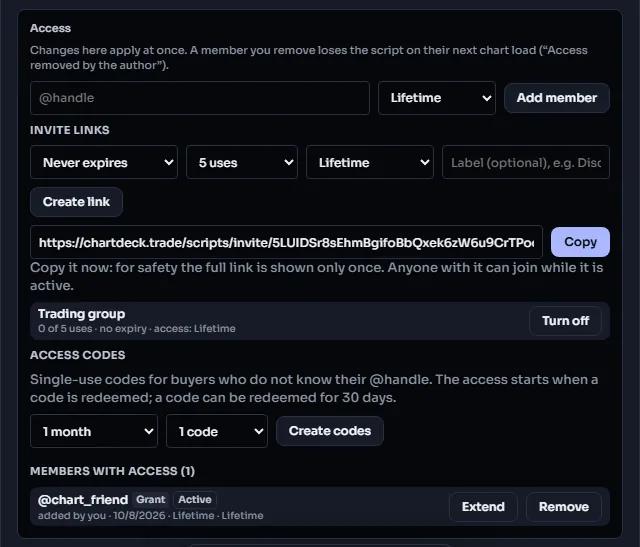
When you choose Invite-only in step 2, the dialog shows an Access panel under the two questions. The first time you publish a script as invite-only, the dialog reopens on this panel so you can let people in straight away. Changes here apply at once; you do not need to click Update.
#Adding members by @handle
Type a member's @handle and click Add member. They need a public profile for this; members without one can join through an invite link instead. A script can be shared with up to 1,000 members, and you always have access to your own script.
#Invite links
Create link makes a link anyone can use to join while it is active. You choose:
- an optional label, so you remember where you shared it ("Discord group"),
- an expiry: never, or after 1, 7, 30 or 90 days,
- a use limit: none, or 1, 5, 10, 25 or 100 people.
Someone who opens the link and is not signed in is asked to sign in first and then comes back to it. Once they have joined, the script opens in their Community view, ready to add.
Each script can have up to 20 active links. The list shows each link's label, how many people joined through it, its use limit, its expiry and its state (active, expired, used up or turned off).
#Members with access
The members list shows who has access, how each one joined ("added by you" or through which link) and when. Members find your script under Community > Scripts > Shared with me.
#Removing access
- Remove next to a member takes their access away.
- Turn off next to a link stops anyone else joining through it, and also removes the members who joined through it (the dialog asks you to confirm).
A member you remove:
- keeps the script on their chart, locked: its legend row shows a lock and "Locked – access removed by the author", it draws nothing, and its settings and source are closed. The row offers Remove from chart.
- is told once, with a notification that names you and the script: "@yourhandle removed your access to Script name. It stays on your chart, locked."
- cannot come back through an invite link. Only you can let them in again, with Let in again in the members list. Their chart then runs the script again, without a reload.
#Switching between public and invite-only
You can change the audience of a published script at any time:
- Public to invite-only: it leaves the Community, search and your profile. Members you have not let in see "Script not available" on their charts from their next load.
- Invite-only to public: everyone can find and add it. The members you let in keep their access if you make it invite-only again later.
Unpublishing and publishing again also keep the list of members.
#Copies of invite-only open-source scripts
Members with access to an Invite-only · Open script can read it and make a copy, like any open-source script. The copy is theirs under your license, with the credit line, and the copies rule applies if they want to publish it. If you do not want copies, choose Invite-only · Protected.