

Your first script
Open the ChartScript editor, start from a template, change it, save it and add it to your chart, step by step.
This page walks you through writing, saving and running a script for the first time. It takes about five minutes. You need to be signed in: ChartScript is on every plan, including Beginner, but not for visitors who are signed out.
#1. Open the Indicators dialog
Your scripts live in the same place as the built-in indicators.
- Click Indicators in the top toolbar (or press
/). - Open the My scripts tab.
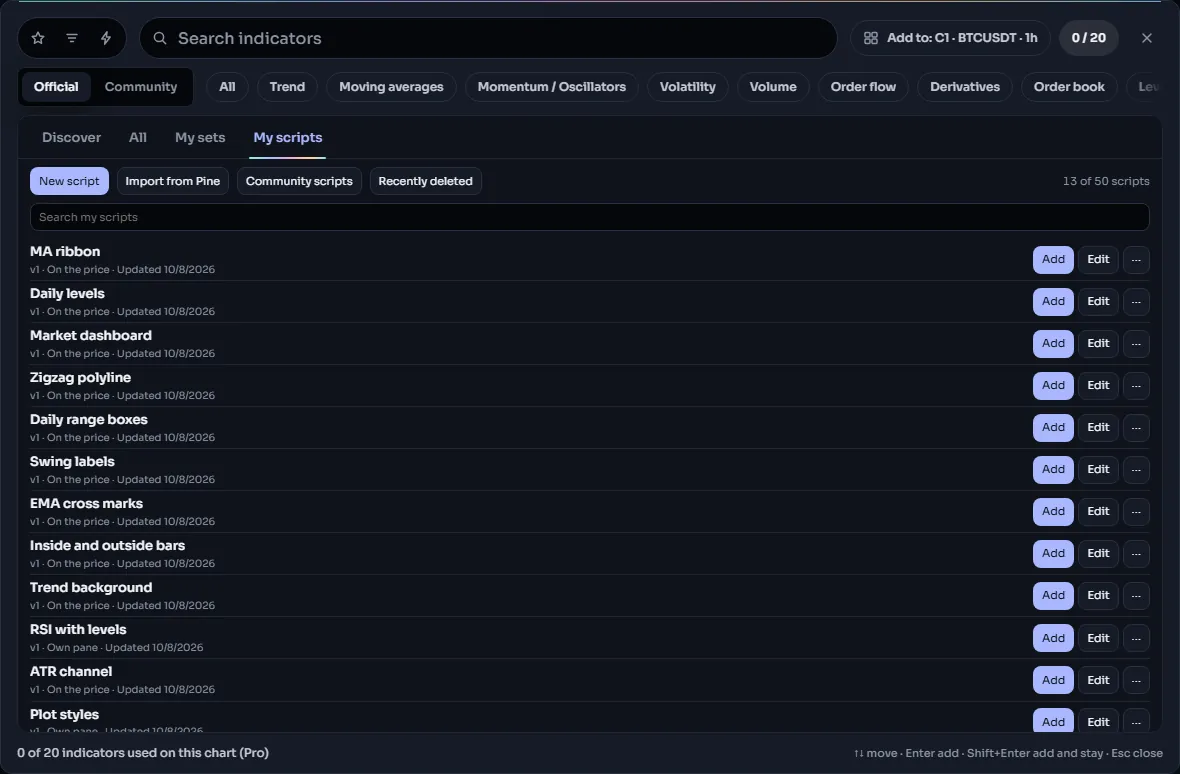
The tab lists your scripts, newest first. Each row shows the version number, whether the script draws On the price or in its Own pane, and when you last changed it. Along the top are New script, an import button for bringing scripts over from other platforms (see Migrating) and Recently deleted. (Scripts published by other members are under Community at the top of the dialog.) The counter on the right says how many scripts you have and how many your plan keeps.
If you have no scripts yet, the tab offers three ways in instead: Write a script, import one, or Browse Community.
#2. Start from a template
Below your list is Start from a template: about 50 small working scripts you can learn from, with a search field and a chip per group. The Templates page lists them all. The first ones to try:
| Template | What it shows |
|---|---|
| Blank overlay | One input and one line over the price |
| Blank oscillator | A histogram in its own pane with a zero line |
| EMA cross | Two averages, markers where they cross, an alert condition |
| RSI with bands | An oscillator with 70 / 30 levels, a filled band and a background tint |
| EMA ribbon | Four averages colored by trend, with a fill between the outer two |
| Up-bar streak | Counting with a state variable and keeping the best value so far |
| Price level alerts | Alert conditions only, nothing drawn |
Click Blank overlay. The dialog closes and the editor opens with the template's code. On a wide screen the editor docks to the right of your charts; on a narrower one it docks along the bottom. Either way the charts shrink to make room, so nothing is hidden behind the editor.
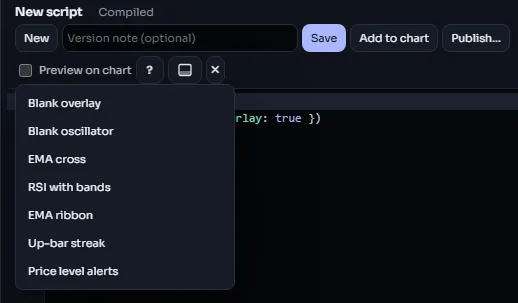
You can also start from the editor itself: New in its tools row lists these templates, and All templates… at the end of the menu opens the whole list.
#3. Read the code
The Blank overlay template looks like this:
//@chartscript 1
indicator("My overlay", { overlay: true })
const len = input.int(20, "Length", { minval: 1 })
plot(ta.sma(close, len), "SMA", color.accent, 2)- The first line,
//@chartscript 1, is required in every script. indicatorgives the script its name.{ overlay: true }puts it on the price. Settings given by name always go in braces like this, asname: valuepairs, at the end of the call.input.intmakes a whole-number setting called Length.minval: 1stops anyone from setting it below 1.const len = …gives the value a name the next line can use.plotdraws a line: here the 20-bar simple average of the close.
If you know JavaScript, the text will look familiar: const and let, braces around blocks, && and ||, // comments. What it means is different, though: the script runs once on every bar of the chart, and each name holds that bar's value. The primer explains this step by step.
Put the cursor on any name, for example ta.sma, and press F1. The Reference tab on the side of the editor explains it. Hovering the mouse over a name shows a short card too.
#4. Change it
Let's turn the single average into two: a fast one and a slow one. Replace the code with this:
//@chartscript 1
indicator("Two averages", { overlay: true })
const fastLen = input.int(10, "Fast length", { minval: 1 })
const slowLen = input.int(30, "Slow length", { minval: 1 })
const fast = ta.ema(close, fastLen)
const slow = ta.ema(close, slowLen)
plot(fast, "Fast", color.aqua, 2)
plot(slow, "Slow", color.orange, 2)
As you type, the editor checks your code about a third of a second after you stop. The status next to the script name says Compiled when all is well, or Errors: 1 (and so on) when something is wrong. Mistakes are underlined in the code and listed in the Problems tab with their line and column; click one to jump to it.
#5. Save it
Press Ctrl+S (Cmd+S on a Mac) or click Save.
The first time, ChartDeck asks you to Name your script. It suggests the title from your indicator(...) line; names can be up to 60 characters and must be different from your other scripts' names. Click Save in the prompt.
You see "Saved version 1". From now on each save makes a new version (version 2, 3 and so on), and the History tab keeps them all. You can add a short note to a version in the Version note (optional) box before you save. See Saving and versions.
A script with errors cannot be saved: fix what the Problems tab lists first.
#6. Add it to your chart
Press Ctrl+Enter (Cmd+Enter) or click Add to chart. The script is added to the active chart (in a multi-chart layout, the one you last selected), just like a built-in indicator. If you have unsaved changes, the editor saves them first.
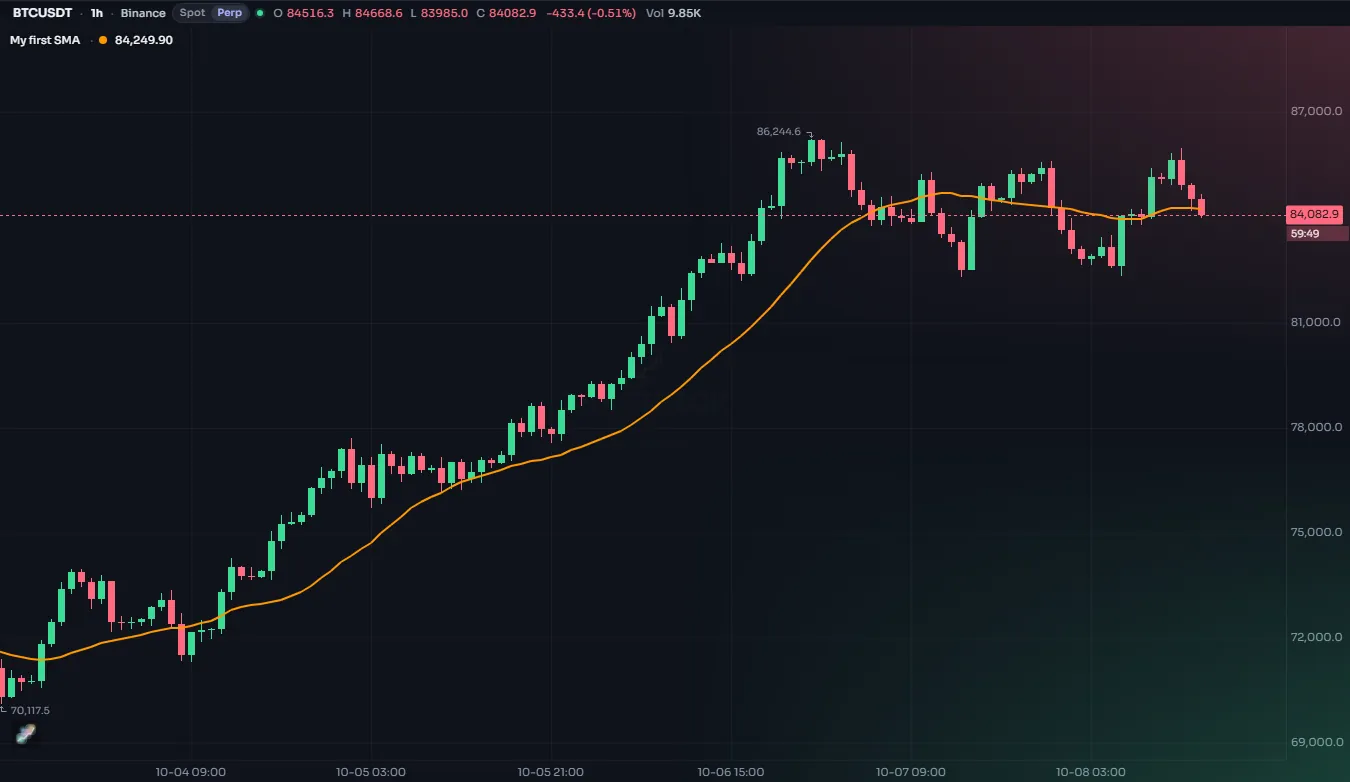
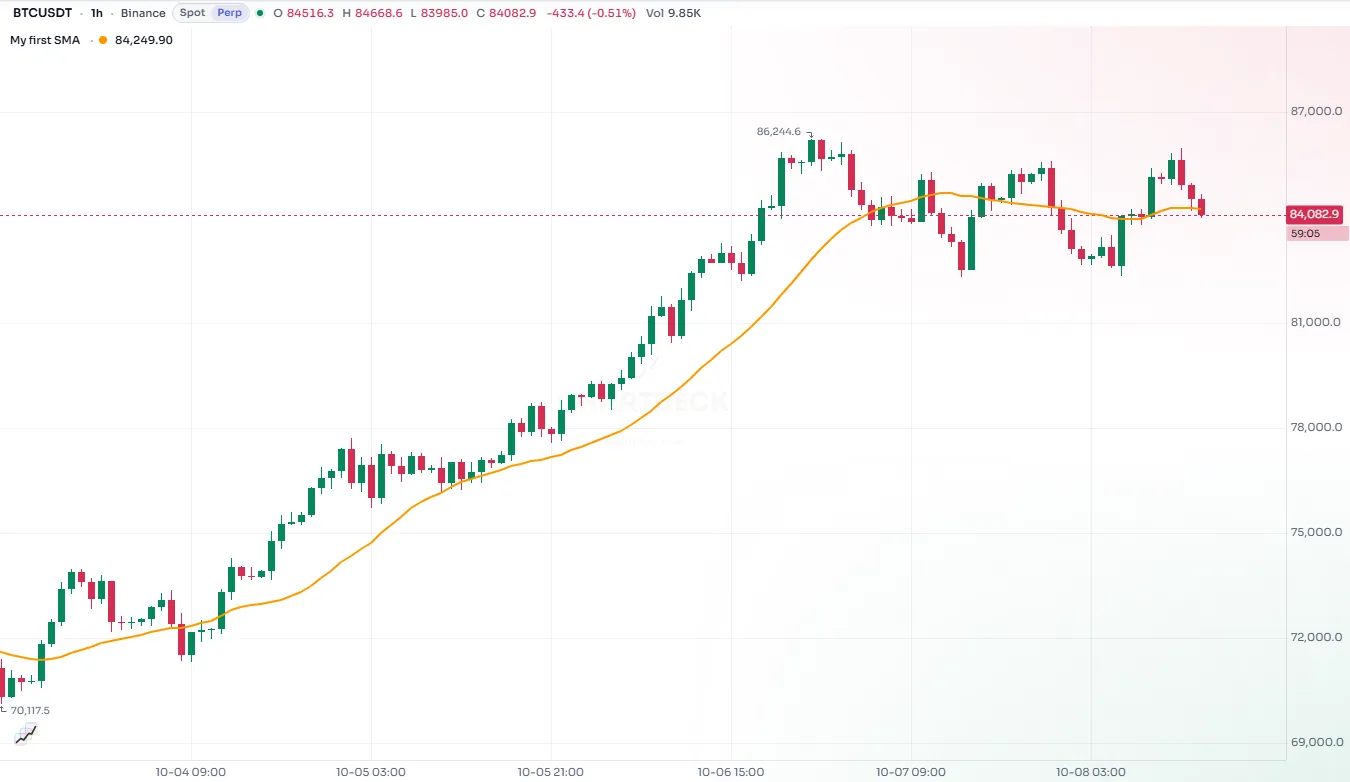
The script now has a row in the chart's legend, with its name, its inputs and the current values. Hover the row for its controls; the gear opens the settings dialog, where Fast length and Slow length appear as inputs. See Adding to a chart.
You can also add a saved script from the Indicators dialog: My scripts, then Add on its row.
#7. Close the editor
Click × at the end of the tools row. If you have unsaved changes, ChartDeck asks first; a draft of them stays in this browser and is offered back the next time you open the script.
To edit the script again later, open Indicators, My scripts and click Edit on its row.
#What next
- Take the editor tour to learn every part of the editor.
- Work through the primer to learn the language step by step.
- When you are proud of a script, publish it.