

Tutorial: dashboard table
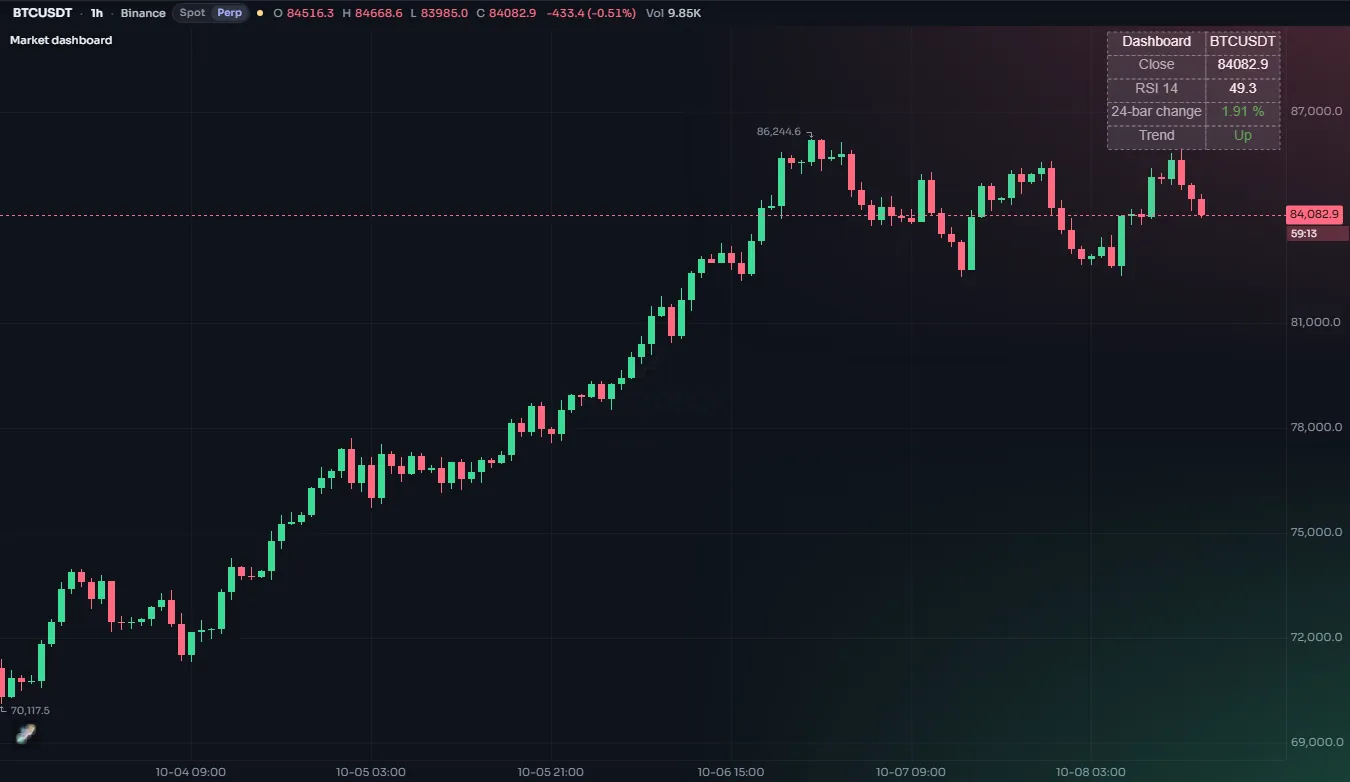
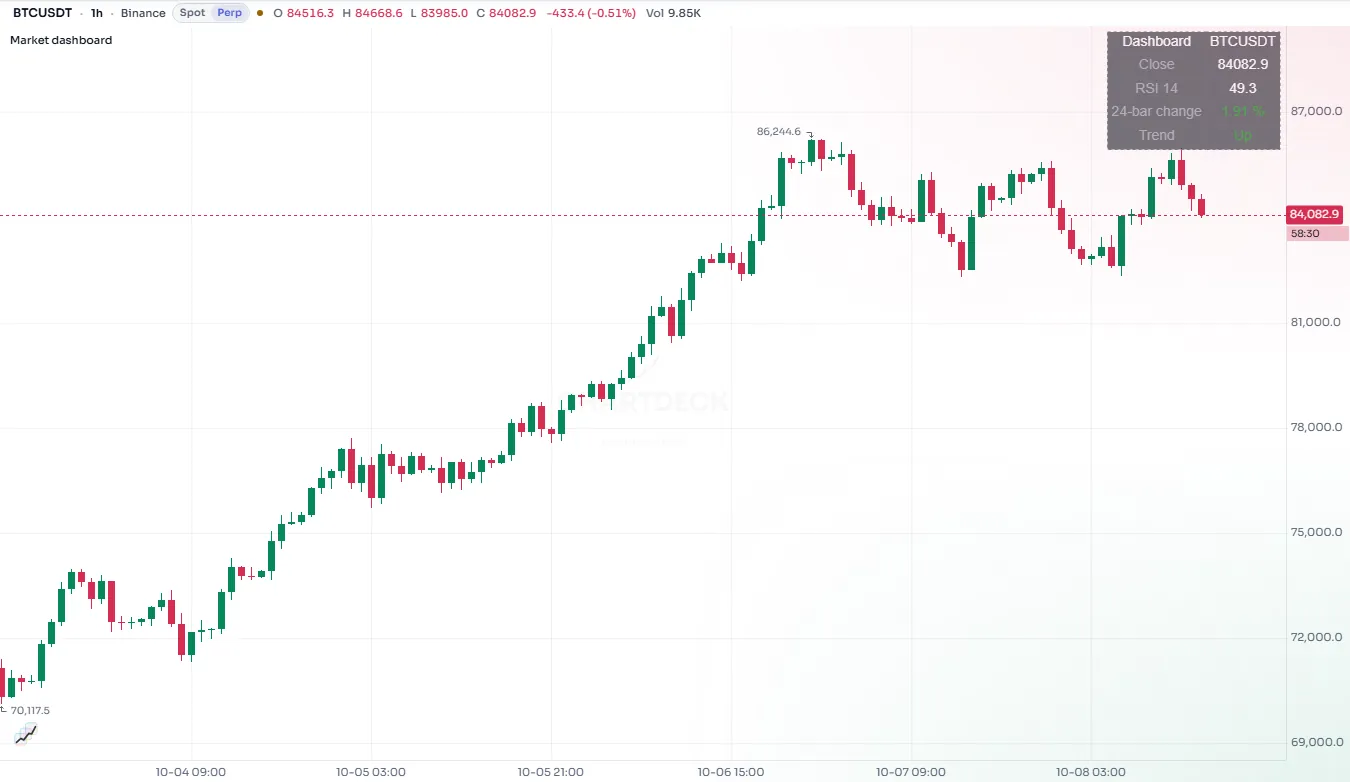
Put a small table in a corner of the chart that shows the trend, RSI and ATR, created once and filled in on the last bar.
Sometimes you want a number, not a line: "what is the RSI right now?" without adding a whole RSI pane. A table in a corner of the chart is a good home for that. In this tutorial you build a small dashboard that shows three readings for the newest bar:
- Trend: up or down, by where the close is against a 50-bar EMA;
- RSI: the 14-bar RSI, colored when it is above 70 or below 30;
- ATR: the 14-bar average true range, in price and as a percentage of the price.
#The finished script
//@chartscript 1
indicator("Mini dashboard", { shorttitle: "Dash", overlay: true })
const emaLen = input.int(50, "Trend EMA length", { minval: 1 })
const rsiLen = input.int(14, "RSI length", { minval: 1 })
const atrLen = input.int(14, "ATR length", { minval: 1 })
const where = input.position(position.top_right, "Position")

const ema = ta.ema(close, emaLen)
const rsi = ta.rsi(close, rsiLen)
const atr = ta.atr(atrLen)
plot(ema, "Trend EMA", color.muted)

// one table, made once: 2 columns x 4 rows
state dash: table = table.new(
    where,
    2,
    4,
    {
        bgcolor: color.theme(#1B1F2A, #F4F6FA),
        frame_color: color.grid,
        frame_width: 1,
        border_color: color.grid,
        border_width: 1
    }
)

// fill it on the last bar only: earlier bars would be overwritten anyway
if (barstate.islast) {
    const trendUp = close > ema
    const rsiCol = rsi > 70 ? color.down : rsi < 30 ? color.up : color.text
    table.cell(dash, 0, 0, "Value", { text_color: color.muted, text_size: size.small })
    table.cell(dash, 1, 0, "Now", { text_color: color.muted, text_size: size.small })
    table.cell(dash, 0, 1, "Trend", { text_color: color.text, text_halign: text.align_left })
    table.cell(dash, 1, 1, trendUp ? "Up" : "Down", { text_color: trendUp ? color.up : color.down })
    table.cell(dash, 0, 2, "RSI " + str.tostring(rsiLen), { text_color: color.text, text_halign: text.align_left })
    table.cell(dash, 1, 2, str.tostring(rsi, "0.0"), { text_color: rsiCol })
    table.cell(dash, 0, 3, "ATR " + str.tostring(atrLen), { text_color: color.text, text_halign: text.align_left })
    table.cell(
        dash,
        1,
        3,
        str.tostring(atr, format.mintick) + " (" + str.tostring(atr / close * 100, "0.00") + "%)",
        { text_color: color.text }
    )
}#Walk-through
#The values
const ema = ta.ema(close, 50)
const rsi = ta.rsi(close, 14)
const atr = ta.atr(14)
plot(ema, "Trend EMA", color.muted)
The calculations run on every bar, as usual, even though the table only shows the last one. That matters: indicators such as ta.ema, ta.rsi and ta.atr build their value up bar by bar, so they must be called on every bar, at the top level of the script, not only inside the if at the end.
The EMA is also plotted, so you can see what "trend" is measured against.
#Creating the table once
state dash: table = table.new(position.top_right, 2, 4, { bgcolor: color.theme(#1B1F2A, #F4F6FA), border_width: 1 })table.new(position, columns, rows) makes a table pinned to one of nine places on the chart: position.top_left, position.top_center, position.top_right, and the same for middle_ and bottom_. Unlike lines and labels, a table does not sit at a bar or a price; it stays in its corner while you scroll.
The state keyword is essential here. Without it, the script would make a new table on every bar. With it, the table is made once, on the first bar, and the same table is reused afterwards. See Variables.
color.theme(dark, light) picks one color for dark charts and another for light ones, so the table stays readable in both. The frame and borders use color.grid, the chart's own grid color.
The position comes from input.position, which shows a small 3 x 3 picker in the settings, so the user can move the table out of the way of the price.
#Filling it on the last bar
state dash: table = table.new(position.top_right, 2, 1)
if (barstate.islast) {
    table.cell(dash, 0, 0, "Close", { text_color: color.muted })
    table.cell(dash, 1, 0, str.tostring(close, format.mintick), { text_color: color.text })
}
barstate.islast is true only on the newest bar of the chart. A table shows one set of values, so writing its cells on every one of thousands of history bars would only overwrite them again and again. Filling it on the last bar is quicker and says clearly what the table is for. On a live chart the last bar runs again with every update, so the table stays current.
table.cell(table, column, row, text) sets one cell. Columns and rows count from 0, so column 0 is the left one and row 0 the top one. Named settings in the options object set the look: text_color, text_size, text_halign (horizontal alignment) and bgcolor for the cell's own background.
#Turning numbers into text
Cells hold text, so every number goes through str.tostring:
str.tostring(rsi, "0.0")gives one decimal, such as57.1;str.tostring(atr, format.mintick)rounds to the market's tick size, like a price on the scale;+joins pieces of text:"ATR " + str.tostring(atrLen)givesATR 14.
The ATR is also shown as a percentage of the close. A raw ATR of 1.3 means very different things on a coin priced at 90 and one priced at 60,000; the percentage is comparable between markets.
#Color that carries meaning
The trend cell is green or red, and the RSI cell turns red above 70 and green below 30, using a ?: chain: rsi > 70 ? color.down : rsi < 30 ? color.up : color.text. Keep colors like these few and meaningful; a table where every cell has its own color is harder to read, not easier.
#Things to know
- Plain text only. Cell text is always shown as plain text.
- Members can dock it. A member can dock a script's tables in a panel below the chart, where the text can be copied or saved as CSV. This works best when every cell is a short, clean value.
- Limits. A script can have up to 50 tables, with up to 2,000 cells each. See Limits and Tables.
#Try this
- Add a row for the 24-bar change in percent:
(close - close[24]) / close[24] * 100. Remember to make the table 5 rows tall. - Add a third column with the same readings from a higher timeframe, using
request.tf(see the multi-timeframe tutorial). - Give the header row a background with
bgcolor: color.new(color.accent, 70)in itstable.cellcalls. - Merge the two header cells into one title with
table.merge_cells.