
The settings dialog
Every tab of an indicator's settings dialog - Inputs, Colors, Style, Labels & text, Visibility - with color presets, label sizes and search.
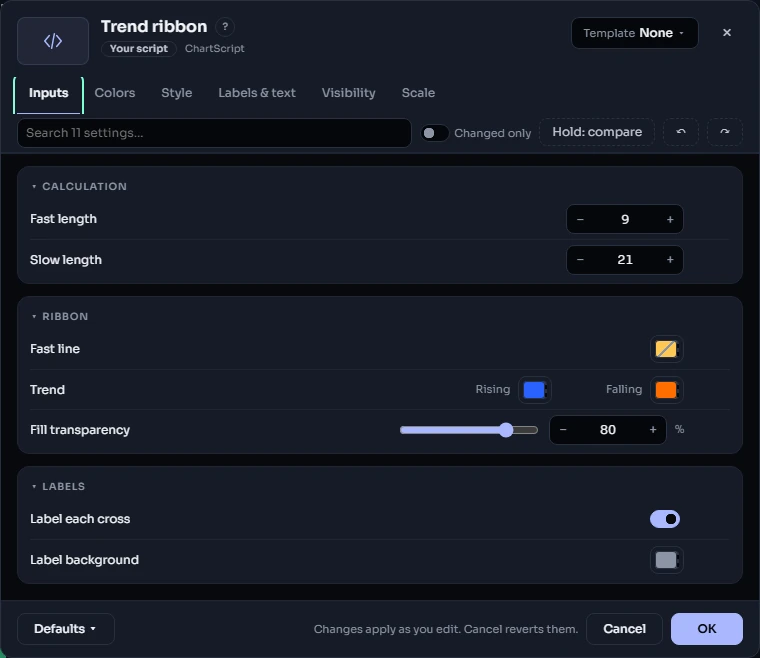
Every indicator on a ChartDeck chart, a built-in one or a ChartScript, has the same settings dialog. Open it with the gear on the indicator's legend row, or double-click the indicator's name. This page walks through what you find there. If you write scripts, Designing your script's settings shows how to make the most of each tab.
#The tabs
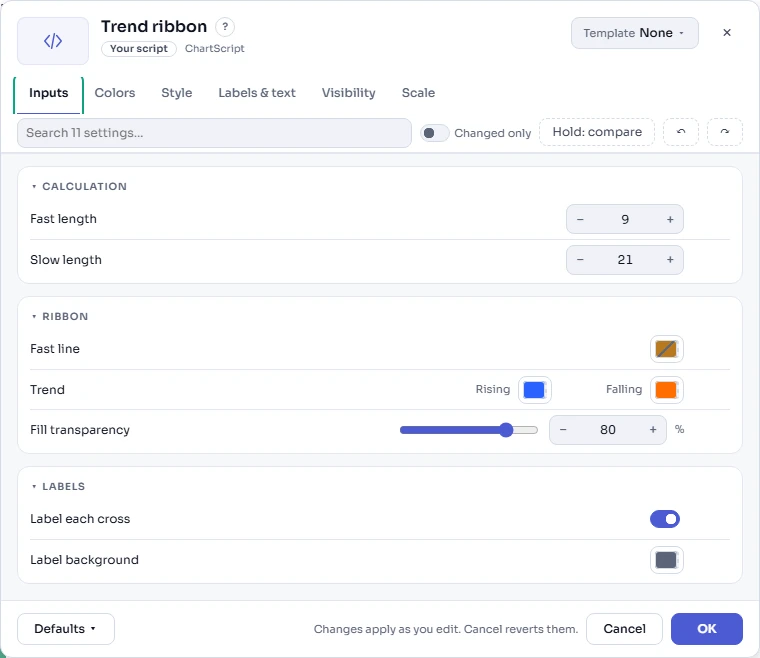
The tabs always come in the same order. A tab that would be empty is not shown, so a script that draws no text has no Labels & text tab.
| Tab | What it holds |
|---|---|
| Inputs | The indicator's own settings: lengths, sources, switches, menus. A script can bring its own tabs instead (for example Main and Levels); they take the place of Inputs. |
| Colors | Every color of the indicator in one list, with one-click color presets. |
| Style | Each line, histogram, marker, level and fill: visibility, color, opacity, width, line style. |
| Labels & text | The size of every label, box and table the script draws, its font and a dimming control. Shown when the script draws text. |
| Visibility | The timeframes the indicator is shown on. |
| Scale | The indicator's scale and pane: shown when it has its own pane or can move to one. |
Built-in indicators have Inputs, Colors, Style and Visibility (and Scale where it applies).
Everything you change shows on the chart at once. OK keeps it; Cancel (or Esc) puts everything back exactly as it was. Inside the dialog, Ctrl+Z undoes your last change and Ctrl+Shift+Z redoes it, for built-in indicators as well as scripts. The arrow keys, Home and End move between the tabs when a tab has the focus.
Each setting shows a small dot when it differs from the default and a ↺ button that resets it alone. A section's heading counts its changes ("3 changed") and resets the whole section. Changed only hides everything you have not touched, and holding Hold: compare shows the defaults on the chart while you hold it.
#Inputs
The Inputs tab lists the settings the indicator's author gave it, in sections. Click a section's heading to fold or open it. Two settings that belong together (a color for rising and one for falling, say) may share one row.
#Big scripts: the section list
A script with many settings (6 sections or more, or 30 settings or more on one tab) gets a section list beside its inputs: each section's name, how many settings it holds, and a dot when one of them is changed. Click a name to open that section and bring it to the top. On a phone the list is a drop-down at the top of the tab.
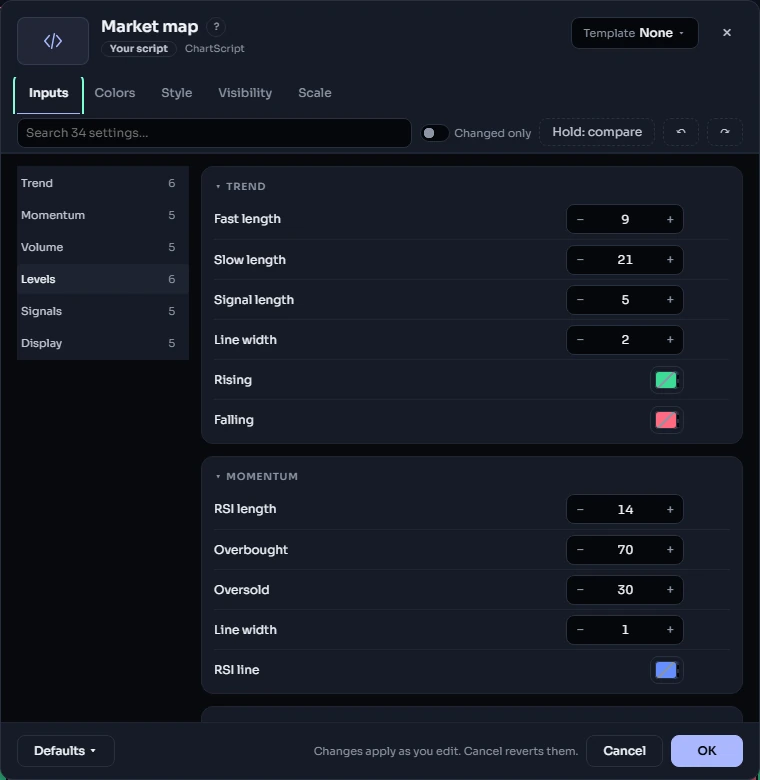
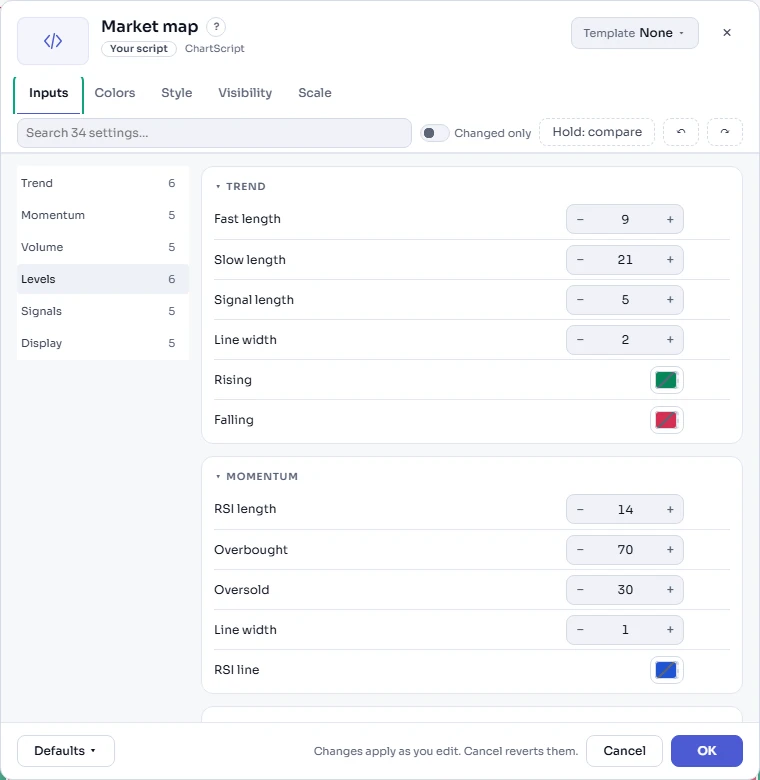
Smaller scripts keep the simple view: their sections one under the other.
#Search
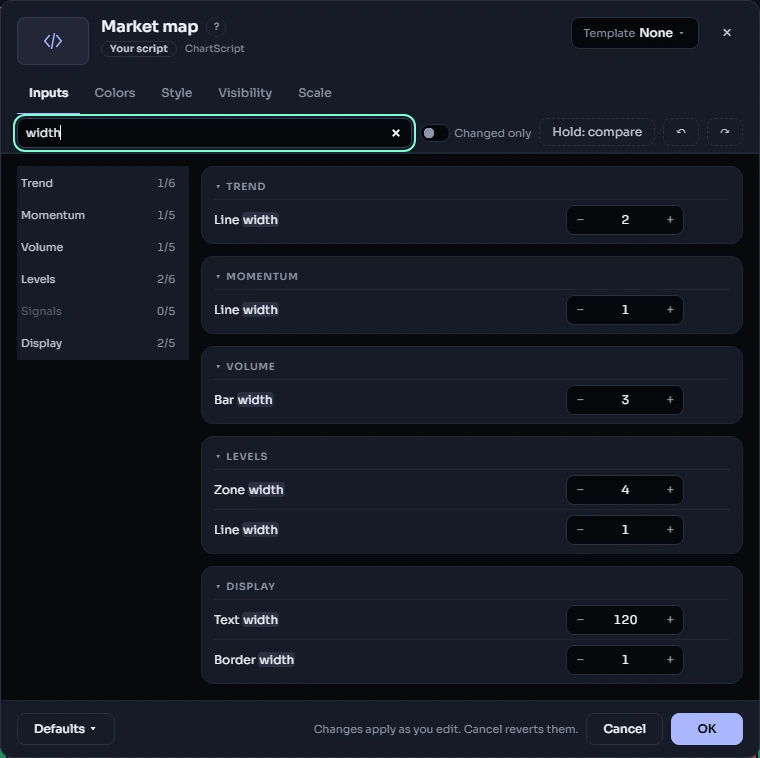
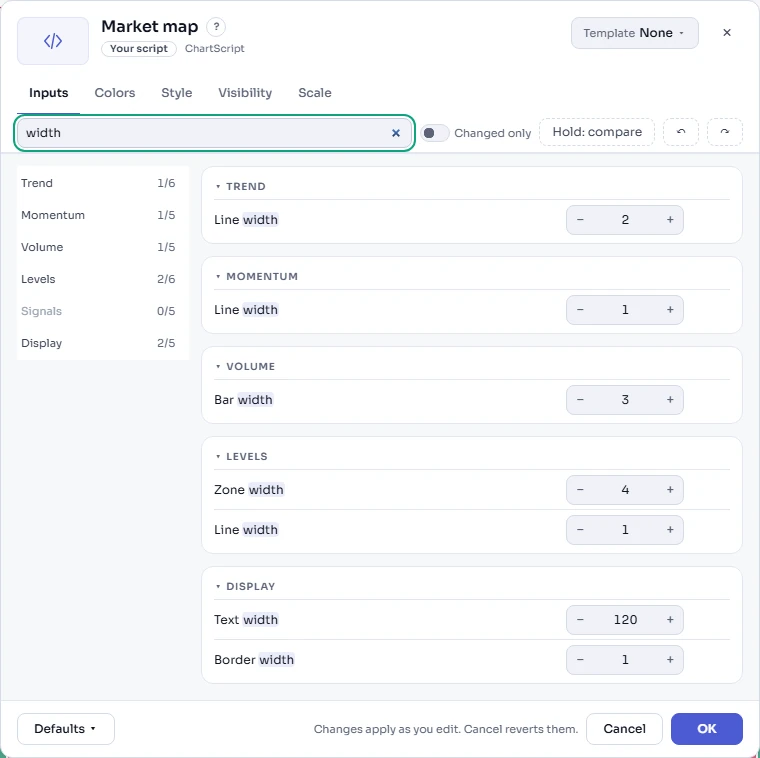
The search box at the top ("Search 34 settings…") finds a setting by its name, its help text, its section or the choices of its menu, on every tab. The matching part of each name is marked, sections with no match are greyed out in the section list, and the list counts the matches of each section ("2/6"). When nothing matches, the tab says so.
#Colors
The Colors tab gathers every color of the indicator in one place, grouped the way the author grouped the settings: a script's color settings under their section, then the colors of what it draws (Plots, Levels and fills, Markers, Styles). For a built-in indicator you find the plot colors, the histogram colors, fills, levels and the colors of what it draws on the chart.
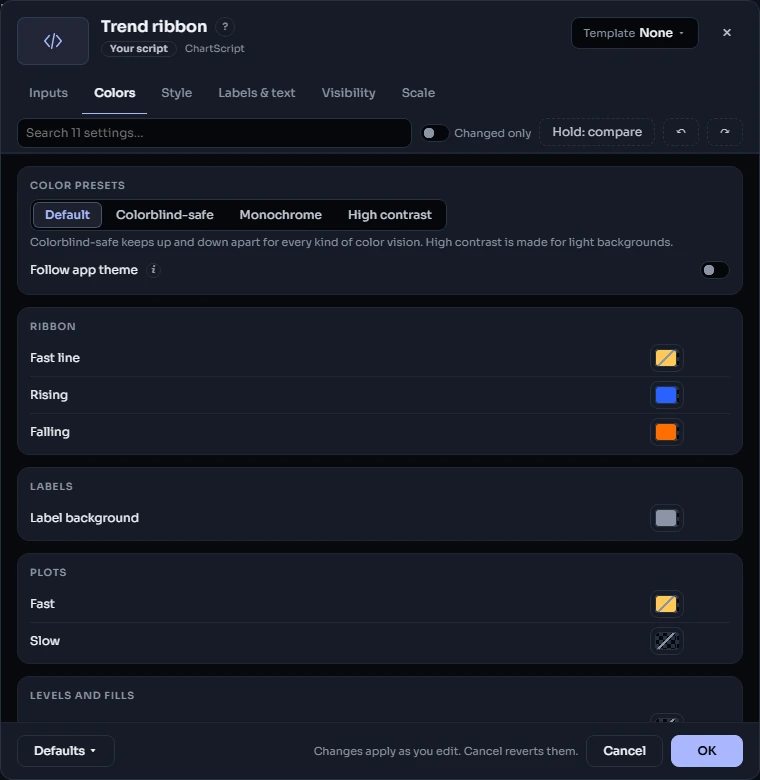
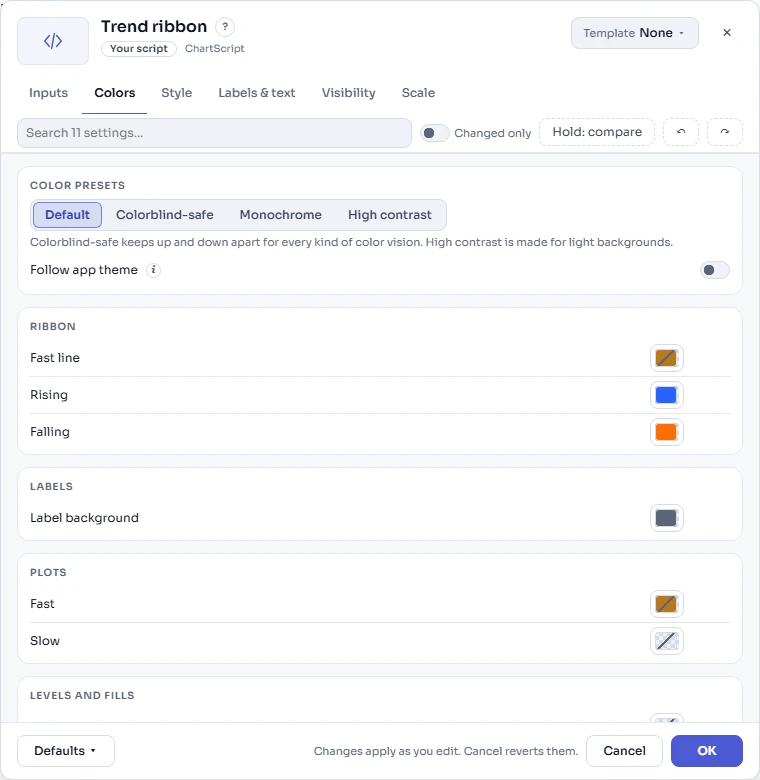
A color here is the same setting as on the Inputs or Style tab, not a copy: change it in either place and the other shows the new color. Each color keeps its own opacity, so a fill at 20 % stays at 20 % whatever color you pick.
Some lines change color from bar to bar (green while they rise and red while they fall, for example). They are listed too; picking a color of your own for one paints every bar with it.
#Color presets
One click recolors the whole indicator:
| Preset | What it does |
|---|---|
| Default | Every color back to the indicator's own. The same as resetting them one by one. |
| Colorblind-safe | The Okabe-Ito colors, which stay apart for every kind of color vision: blue for up, vermillion for down, grey for neutral lines, and orange, sky blue, green, pink and yellow for the other lines. |
| Monochrome | Greys and one accent: up in the strong ink of your theme (light on a dark chart, dark on a light one), down in a soft grey, the first other line blue and the rest grey. |
| High contrast | Dark, saturated colors that stand out on a light background (each at least 3:1 against white). |
A preset is one change: Ctrl+Z takes all of it back in one step. The preset you applied last stays lit; when you then change a color by hand, none is.
How does a preset know which color is "up"? Each color has a role: up, down, neutral or accent. The script's author can say so (on a color input, a plot, marker, level or fill, or a named style); otherwise ChartDeck works it out from the color itself (the theme's up and down colors, greens and reds), and from its name ("Bull", "Buy", "Long", "Support", "Rising" are up; "Bear", "Sell", "Short", "Resistance", "Falling" are down). Grey colors are neutral, and everything else is an accent. Text and outline (halo) colors are listed but never changed by a preset, so labels stay readable. A color that changes from bar to bar keeps changing: its greens become the preset's up color and its reds the down color.
#Follow app theme
Scripts have a Follow app theme switch under the presets. When it is on, a fixed color that would be hard to see on your chart background (one too dark for a dark chart, or too light for a light one) is made lighter or darker until it stands out. Its hue and opacity stay the same. It follows you when you switch the app between dark and light.
Built-in indicators do not need the switch: their colors follow the theme already.
#Style
The Style tab lists everything the indicator draws: each plot, histogram, marker, level and fill, with its visibility, color, opacity, width and line style. Changing a style never recalculates the indicator; it only repaints it.
#Labels & text
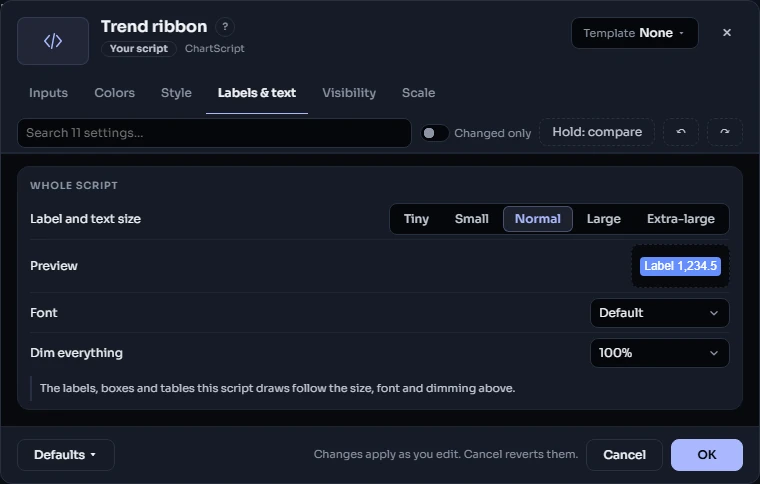
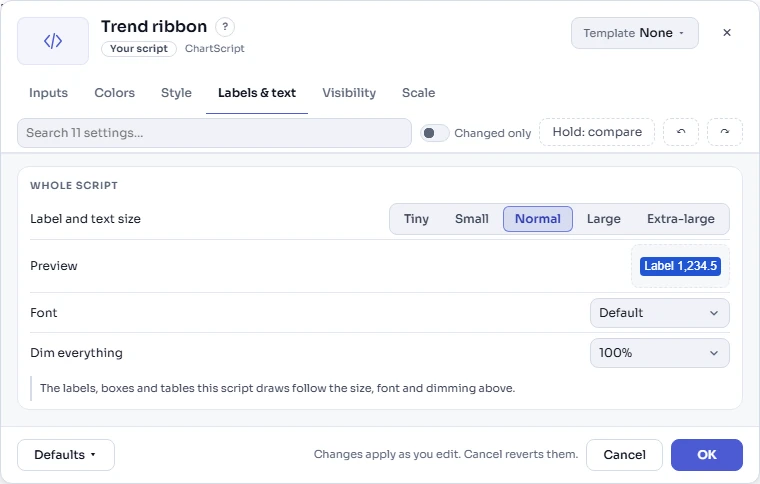
When a script draws text (labels, boxes or tables with text) or markers, the Labels & text tab sets the text of the whole script at once. Markers (shapes and characters drawn on bars) grow and shrink with the text.
| Size | Text is |
|---|---|
| Tiny | 75 % of normal |
| Small | 87.5 % |
| Normal | as the script draws it |
| Large | 125 % |
| Extra-large | 150 % |
The Preview shows a label at the chosen size, font and dimming as you change them. Font changes the typeface of all the script's text and Dim everything fades the whole indicator. If a script was set to another size in an older version of ChartDeck (110 %, say), that size stays and shows as Custom (110%) until you pick one of the five.
Below the script-wide settings you may find rows for single kinds of text the author named (for example "Signal labels"), each with its own size, font, color, outline and background.
#Saving and sharing your settings
Your settings are saved with the chart, in layouts and in templates. Template saves the current settings under a name; the Defaults menu copies them to another copy of the same indicator, copies them as text to share, or applies them to every copy in the layout. See Adding to the chart.
#See also
- Inputs: every kind of input a script can have.
- Designing your script's settings: sections, color roles and label sizes for authors.
- Colors and Text and shapes.