

Editor tour
Every part of the ChartScript editor - the tools row, docking, the Problems, Console, History, Profile and Reference tabs, shortcuts and phone mode.
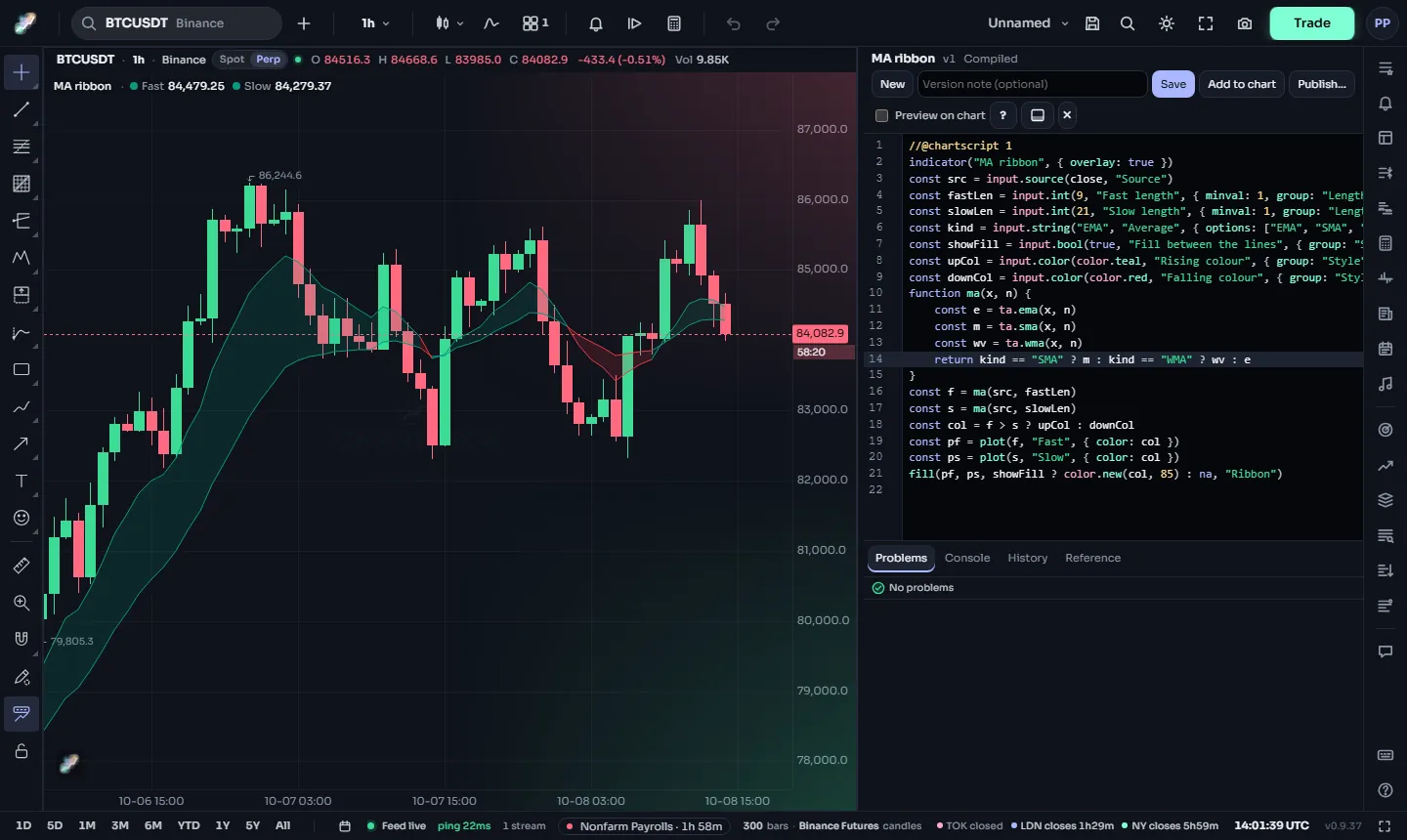
The editor is a panel that docks beside your charts. You write code on one side and see problems, output, versions and help on the other. This page goes through it part by part.
#Opening and closing
- Indicators (or
/), My scripts, then Edit on a script's row opens that script. - New script or a template card in My scripts opens a new, unsaved script.
- History… in a row's ⋯ menu opens the script with its History tab showing.
- × at the end of the tools row closes the editor. With unsaved changes it asks first ("Close with unsaved changes?"); choose Keep editing to stay.
Opening a different script, or a template, while you have unsaved changes also asks before replacing them.
#The header
The top line shows:
- the script's name (or "New script" before the first save),
- the version in the editor, such as
v3, - a dot • when there are unsaved changes,
- the status: "Compiling…", Compiled, or Errors: n.
The editor compiles your code automatically about 300 ms after you stop typing. You never need to press a "check" button.
#The tools row
From left to right:
| Tool | What it does |
|---|---|
| New | Opens a short list of templates; All templates… at its end opens every template with search and groups. Picking one opens it as a new, unsaved script. |
| Version note (optional) | A short note saved with the next version, up to 500 characters. It shows in the History tab. |
| Save | Saves a new version (Ctrl+S). The first save asks for a name. |
| Add to chart | Adds the script to the active chart (Ctrl+Enter), saving first if needed. |
| Publish… | Opens the publish dialog. Once published the button reads Published ✓. See Publishing. |
| Preview on chart | A switch: runs the code in the editor on the active chart as you type. See Preview on chart. |
| ? | Opens a short "Getting started with ChartScript" guide in the Reference tab, with an example and an Insert into editor button. |
| Dock button | Moves the editor between Dock right and Dock bottom. |
| × | Closes the editor. |
#Docking and resizing
On a wide screen (1,280 pixels or more) the editor docks on the right by default; below that it docks at the bottom. Use the dock button to switch. The editor is part of the page layout, so your charts shrink to make room instead of being covered, and get the room back when you close it.
Drag the editor's inner edge to resize it: the side edge when docked right, the top edge when docked at the bottom. With the edge focused you can also use the arrow keys. ChartDeck remembers your dock and size.
#Writing code
The code area is a full code editor:
- Syntax colors for keywords, types, numbers, strings, colors, comments and built-in names.
- Line numbers, matching-bracket highlighting, and brackets and quotes that close themselves.
- Tab indents by four spaces. Blocks are marked by braces
{ … }, so indentation is only for reading, but keeping it tidy makes the code much easier to follow. - Undo and redo (Ctrl+Z, Ctrl+Shift+Z) and search (Ctrl+F).
- Autocomplete: as you type a name, or right after a dot (
ta.,color.), a list of matching names appears with their types: the built-ins and your script's own variables, functions, types and enums. After the name of one of your enums the list holds its members, after one of your typesnewandcopy, and after a variable that holds one of your types its fields and methods. Press Ctrl+Space to open the list yourself. The highlighted suggestion shows its one-line explanation beside the list; for one of your own names that is its declaration and the comment above it. - Parameter help: while you type the arguments of a call, the function's signature sits just above the line with the parameter you are on in bold, and under it that parameter's line from the reference. It works for your own functions too, where the comment right above the function is shown. Esc puts it away until you move to another call.
- Hover cards: rest the mouse on a built-in name to see its signature, a short explanation, its parameters and often an example. On one of your own names the card shows its declaration, the comment above it and the line it is defined on.
While the editor has focus, the terminal's own keyboard shortcuts are switched off, so typing code never changes your chart by accident.
#Problems tab
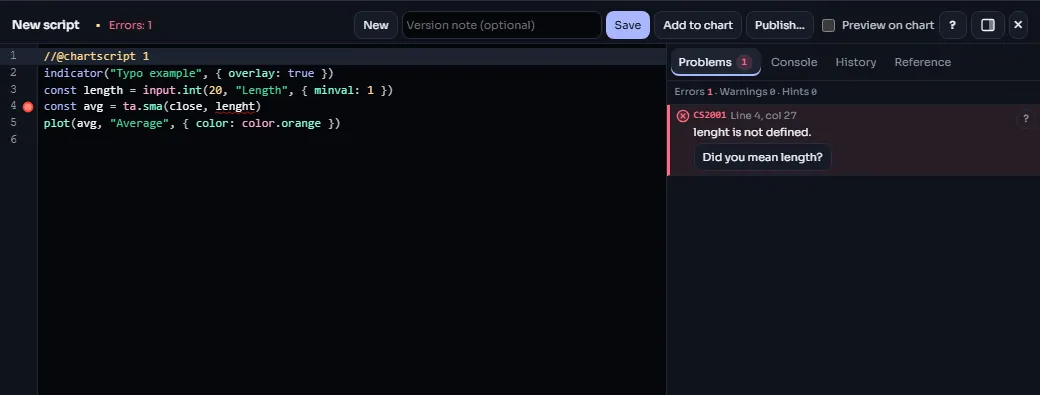
Every compile fills the Problems tab. The tab shows how many there are in a small count badge (red when one of them is an error), and a summary line counts each kind, for example Errors 1 · Warnings 1 · Hints 0, or says No problems.
Each entry shows:
- the code, such as
CS2001(every code has its own page under Error messages), - where: "Line 4, col 9", or "Script" for problems about the whole script,
- the message in plain words.
Click an entry to jump to that place in the code. The same problems are underlined in the code and marked in the gutter.
There are three severities:
- Errors stop the script from compiling. You cannot save or run it until they are fixed.
- Warnings compile, but point at code that probably does not do what you meant.
- Hints are suggestions.
For example, this line is a mistake ChartScript always catches, because comparing with na is never true:
//@chartscript 1
indicator("Check for na")
const x = ta.sma(close, 20)
plot(x == na ? 0 : x)#Quick fixes
Some problems come with a fix the editor can make for you: Insert //@chartscript 1 for a missing header, Did you mean …? for a misspelt name, Use na() for the comparison above, Declare with let (or Keep between bars (state)) for a name assigned before it was declared, and Use state or Use let where var was written. A quick fix shows as a button on the problem's entry, and as an action when you hover the underlined code. Click it and the editor changes the code; you can still undo it.
#Console tab
The Console shows what happened when the script ran:
- after each compile, "Compiled in 3 ms · 24 lines" or "Compiled with 2 errors",
- runtime errors while the preview runs, with the line and the bar's time in UTC, for example "Line 12, bar 2026-10-08 14:00 UTC: …",
- the messages your script writes with
log.info,log.warningandlog.error, with the bar they came from.
Each line starts with the time it was written. The console keeps the last 200 lines; Clear empties it. Runtime errors and log messages appear while Preview on chart is on. Debugging shows how to use logging well.
//@chartscript 1
indicator("Log big moves", { overlay: true })
const move = math.abs(close - open) / open * 100
if (barstate.isconfirmed && move > 3) {
    log.info("Big bar: " + str.tostring(move, "#.##") + "%")
}
plot(close, "Close", color.muted)#History tab
Every save is a version, and the History tab lists them newest first, with their time, their note, and tags such as Current, Published and In the editor. Each version can be opened read-only, compared with the editor, or restored as a new version. Saving and versions covers it in full.
#Profile tab
Run profile runs the script once on the active chart with timers and lists its lines by the time they took, with how many times each ran, and the same for your functions. Nothing is measured until you press the button. Profiling explains how to read it.
#Reference tab and F1
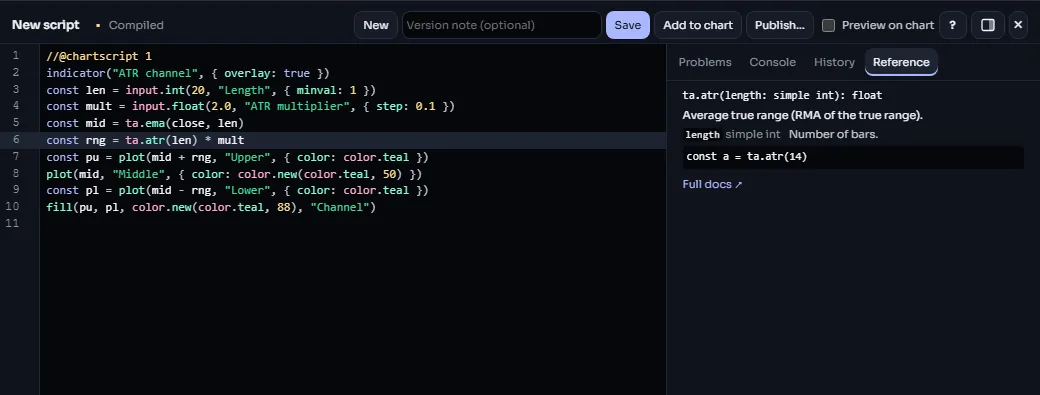
Put the cursor on a name and press F1: the Reference tab shows its card, with the signature, an explanation, each parameter on its own line, and an example when there is one. Names that are not available yet say so. For a name your own script declares, the card shows the declaration, the comment above it and its line. If the cursor is not on a known name, the tab tells you there is no reference for it.
The full reference manual on this site has the same information for every built-in, organized by namespace.
#Banners
Under the tools row the editor shows at most one banner at a time, the most important first:
- A load error, such as "The script could not be loaded.", with Retry. Nothing can be saved until it loads.
- Read-only, when you are looking at something you cannot change in place:
- an older version ("Read-only · Viewing version 2 of 5") with Restore as a new version and Back to the latest;
- a ChartDeck official script or an open-source Community script ("Read-only · Viewing @handle's script") with Make a copy to edit.
- A draft: "You have unsaved changes from …", with Restore and Discard.
- A first-run hint with the basic shortcuts, until you click Got it.
#Drafts
While you type, the editor keeps a draft of your unsaved changes in this browser. If you close the editor, reload the page or lose the connection, the next time you open the same script (or a new script) the draft banner offers your changes back. Restore puts them in the editor; Discard throws them away.
Drafts live only in this browser on this device. They are not versions: only Save makes a version on ChartDeck.
#Phones
On a screen 640 pixels wide or less, the editor opens as a full-width sheet and starts read-only, so scrolling through code does not pop up the keyboard or change anything by accident. To type, switch on Edit anyway in the tools row.
When editing, a row of extra keys appears for characters that are awkward on a phone keyboard: { } [ ] ( ) = " . , => and Tab. Tools that do not fit (New, Publish, Preview on chart, History, Getting started) move into the ⋯ menu.
Scripts on a phone run on at most 2,000 bars to keep the chart responsive.
#Keyboard shortcuts
| Keys | Action |
|---|---|
| Ctrl+S / Cmd+S | Save a new version |
| Ctrl+Enter / Cmd+Enter | Add to the active chart |
| F1 | Reference for the name under the cursor |
| Ctrl+Space | Open autocomplete |
| Ctrl+F / Cmd+F | Search in the code |
| Ctrl+Z, Ctrl+Shift+Z | Undo, redo |
| Tab | Indent (four spaces) |
| Escape | Close an open menu |