

Tables
Show a grid of text in a corner of the pane with table.new and table.cell: positions, styling, merged cells, updating on the last bar and the caps.
A table is a grid of text cells pinned to a corner of the pane. It does not move with the chart: it stays put while you scroll and zoom. That makes it the natural place for a dashboard: the current readings of several indicators, a summary of the trend on a few lengths, a small statistics panel.
Like labels and lines, a table is a drawing object: you create it from code and fill it with table.cell.
#A dashboard
//@chartscript 1
indicator("Market dashboard", { overlay: true })
state board: table = table.new(
    position.top_right,
    2,
    5,
    {
        bgcolor: color.new(color.black, 30),
        frame_color: color.muted,
        frame_width: 1,
        border_color: color.new(color.muted, 60),
        border_width: 1
    }
)

const rsi = ta.rsi(close, 14)
const atrPct = ta.atr(14) / close * 100
const volRatio = volume / ta.sma(volume, 20)
const trendUp = close > ta.ema(close, 50)

// fill the table once per update, on the last bar only
if (barstate.islast) {
    board.cell(0, 0, "Reading", { text_color: color.white, text_formatting: text.format_bold })
    board.cell(1, 0, "Value", { text_color: color.white, text_formatting: text.format_bold })
    board.cell(0, 1, "Trend (EMA 50)", { text_color: color.white, text_halign: text.align_left })
    board.cell(1, 1, trendUp ? "Up" : "Down", { text_color: trendUp ? color.up : color.down })
    board.cell(0, 2, "RSI 14", { text_color: color.white, text_halign: text.align_left })
    board.cell(
        1,
        2,
        str.tostring(rsi, "#.0"),
        { text_color: rsi > 70 ? color.down : rsi < 30 ? color.up : color.white }
    )
    board.cell(0, 3, "ATR % of price", { text_color: color.white, text_halign: text.align_left })
    board.cell(1, 3, str.tostring(atrPct, "#.##") + "%", { text_color: color.white })
    board.cell(0, 4, "Volume vs 20-bar avg", { text_color: color.white, text_halign: text.align_left })
    board.cell(1, 4, str.tostring(volRatio, "#.##") + "x", { text_color: volRatio > 2 ? color.orange : color.white })
}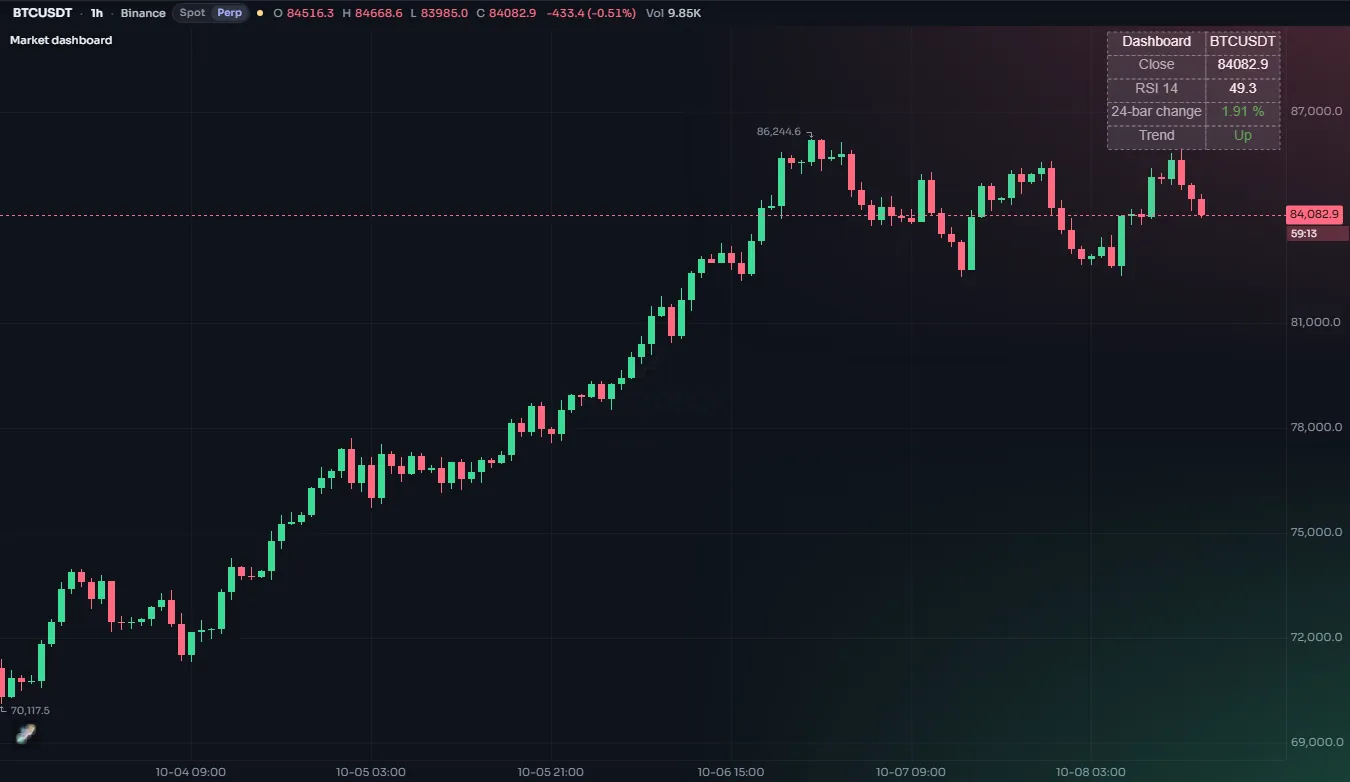
Two habits make tables cheap and correct:
- Create the table once, with
state. Withoutstate, the script would make a new table on every bar. - Fill it on the last bar, inside
if (barstate.islast). A table shows only its latest contents, so writing cells on every historical bar is wasted work. On a live chart the last bar runs again with every update, so the table stays current.
#Creating a table
table.new takes a position, a number of columns and a number of rows, then the table's style:
| Argument | What it does | Default |
|---|---|---|
position | The corner or edge of the pane (see below) | required |
columns, rows | The size of the grid. Cells are numbered from 0. | required |
bgcolor | The background behind all cells | none |
frame_color, frame_width | The outer border | none, 0 |
border_color, border_width | The lines between cells | none, 0 |
The nine positions are position.top_left, position.top_center, position.top_right, position.middle_left, position.middle_center, position.middle_right, position.bottom_left, position.bottom_center and position.bottom_right. Several tables in the same position stack rather than overlap.
#Cells
table.cell sets one cell's text and look. The first three arguments are the table, the column and the row.
| Argument | What it does | Default |
|---|---|---|
text | The cell's text (plain text; \n starts a new line) | "" |
text_color | The text color | black |
bgcolor | The cell's own background | none |
text_halign, text_valign | text.align_left / center / right, text.align_top / center / bottom | center |
text_size | size.tiny ... size.huge | size.normal |
width, height | A share of the pane in %, or 0 for automatic | 0 |
tooltip | Text shown when the pointer hovers over the cell | none |
text_font_family | font.family_default or font.family_monospace | default |
text_formatting | text.format_bold, text.format_italic, or both added | none |
The default text color is black, which is hard to read on a dark chart. Always set text_color (and a bgcolor on the table or cells), or use theme colors such as color.text.
Calling table.cell again on the same cell replaces it. To change just one property, use the setters: table.cell_set_text, table.cell_set_bgcolor, table.cell_set_text_color, table.cell_set_tooltip and the rest of the table.cell_set_* family.
Numbers in monospace line up neatly in a column, which helps when a table holds many values:
state t: table = table.new(position.bottom_left, 1, 1)
if (barstate.islast) {
    t.cell(
        0,
        0,
        str.tostring(close, format.mintick),
        { text_color: color.text, text_font_family: font.family_monospace }
    )
}#Merging and clearing
table.merge_cells joins a rectangle of cells into one, with the text of the first. A merged header across the top of a table is the usual use:
//@chartscript 1
indicator("Returns table", { overlay: true })
state t: table = table.new(
    position.bottom_right,
    3,
    3,
    { bgcolor: color.new(color.black, 30), border_color: color.new(color.muted, 60), border_width: 1 }
)

const pct = (n) => (close - close[n]) / close[n] * 100
const cellColour = (v) => v >= 0 ? color.up : color.down

if (barstate.islast) {
    t.cell(0, 0, "Change over", { text_color: color.white, text_formatting: text.format_bold })
    t.merge_cells(0, 0, 2, 0)
    t.cell(0, 1, "10 bars", { text_color: color.muted })
    t.cell(1, 1, "50 bars", { text_color: color.muted })
    t.cell(2, 1, "200 bars", { text_color: color.muted })
    const r10 = pct(10)
    const r50 = pct(50)
    const r200 = pct(200)
    t.cell(0, 2, str.tostring(r10, "#.##") + "%", { text_color: cellColour(r10) })
    t.cell(1, 2, str.tostring(r50, "#.##") + "%", { text_color: cellColour(r50) })
    t.cell(2, 2, str.tostring(r200, "#.##") + "%", { text_color: cellColour(r200) })
}
table.clear empties a rectangle of cells (or one cell). table.delete removes the whole table.
The table itself has setters too: table.set_position, table.set_bgcolor, table.set_frame_color, table.set_frame_width, table.set_border_color and table.set_border_width. Combined with an input, set_position lets the user move your dashboard:
const where = input.string(
    "top_right",
    "Table position",
    { options: ["top_left", "top_right", "bottom_left", "bottom_right"] }
)
state t: table = table.new(position.top_right, 1, 1, { bgcolor: color.new(color.black, 30) })
if (barstate.islast) {
    t.set_position(where)
    t.cell(0, 0, "Hello", { text_color: color.white })
}#Tables in a panel below the chart
The person using your script can choose, in its Style tab, to show the script's tables in a panel below the chart instead of over it. There the text can be selected and copied, and the panel offers Copy as text and Copy as CSV. You do not need to do anything for this; it works for every table. It is a good reason to keep table text meaningful on its own, with a header row.
#Limits
| Limit | Value |
|---|---|
| Tables per script | 50 (the oldest is removed when a script makes more) |
| Cells per table | 2,000 |
Fifty tables is far more than a readable chart needs. If you find yourself near the limit, one larger table is almost always clearer than many small ones.