

Saving and versions
Every save of a ChartScript script is a version. Add notes, open, compare and restore versions, and rename, copy or delete scripts.
ChartDeck never overwrites your work. Each time you save, the script gets a new numbered version, and the earlier ones stay in its history. This page explains how saving works and how to get back to an older version.
#Saving
Press Ctrl+S (Cmd+S on a Mac) or click Save in the editor's tools row.
- The first save of a new script asks you to Name your script. The editor suggests the title from your
indicator(...)line. A name can be up to 60 characters and must differ from the names of your other scripts. - Every later save adds a version: you see "Saved version 2", "Saved version 3" and so on, and the header shows the new number.
- If nothing changed since the last save, the editor tells you "No changes to save." and makes no version.
ChartDeck checks the script when you save. A script with errors is not saved ("The script has errors. Fix them before saving.") and the Problems tab opens on what to fix. Warnings and hints do not block a save.
#Version notes
The Version note (optional) box in the tools row lets you say what changed, in up to 500 characters: "Added a slow average", "Fixed the color on down bars". The note is saved with the next version and then the box clears. Notes show in the History tab, so you can find the version you want without reading code.
#The History tab
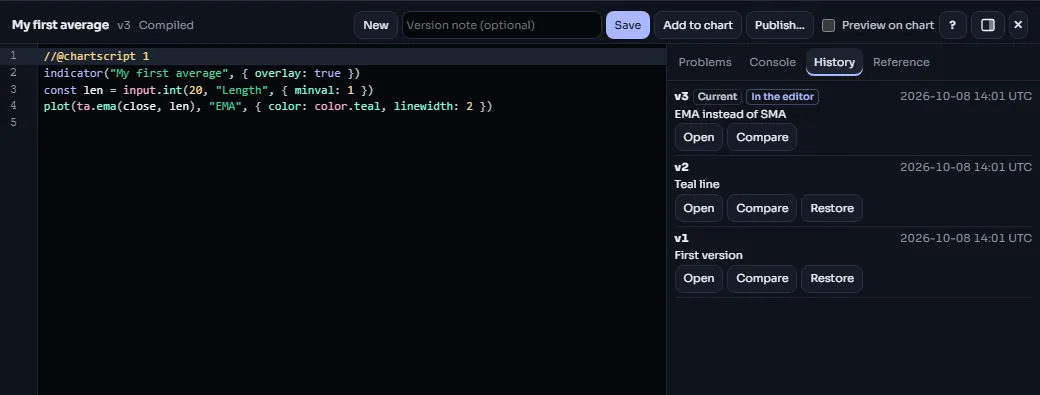
Open the History tab on the side of the editor, or choose History… in a script's ⋯ menu under Indicators > My scripts. Versions are listed newest first, each with:
- its number (
v5) and when it was saved, in UTC, - its note, or "No note",
- tags: Current for the newest version, Published for the version Community members run, and In the editor for the one you are looking at.
Each version has three buttons.
#Open
Open loads that version into the editor read-only. A banner says "Read-only · Viewing version 2 of 5". You can read it, preview it and copy text out of it, but not change it, so you can never edit history by accident. From the banner you can:
- Restore as a new version to carry on from it, or
- Back to the latest to return to the newest version.
Opening the newest version opens it normally, ready to edit.
#Compare
Compare shows the differences between two texts. It opens with that version against the code that is in the editor right now, including unsaved changes; on the version that is open and unchanged it opens with the version before it instead.
- From and To choose what is compared: any two saved versions, or a version against The editor. ⇄ swaps two versions.
- Inline lists the lines one under another: added lines start with
+, removed lines with-. Side by side puts the older text on the left and the newer one on the right, each with its line numbers, and a changed line beside the line that replaced it. Your choice is remembered. - The header counts the added and removed lines. Only the changes and three lines around each are shown; a longer unchanged stretch folds into one line that says how many lines it holds.
- The view is read-only. To go back to an old text, use Restore.
Scripts of any size compare: large ones are compared in the background, so the page stays responsive. A comparison with a great many changes shows the first 4,000 lines of it and says so. Where two texts have almost nothing in common, that part is shown as one removed block and one added block. ← History goes back to the list.
#Restore
Restore saves the old version again, as the newest version, with the note "Restored from v2". The history is never rewritten: if you restore version 2 of 5, you get version 6 with version 2's code, and versions 3 to 5 are still there if you change your mind.
If you have unsaved changes, ChartDeck asks first, because restoring replaces what is in the editor.
#How many versions are kept
Each plan keeps a number of versions per script: 5 on Beginner, 50 on Plus, 200 on Pro, and every version on Elite. When a save goes past the limit, the oldest versions are removed first, with two exceptions that are always kept:
- the newest version, and
- any version that one of your saved layouts, or the chart you have open right now, is set to run.
So a chart you have kept on an older version never loses it. See Limits for all the numbers.
#Drafts are not versions
While you type, the editor keeps a draft of your unsaved changes in this browser, and offers it back if you close the editor or the page before saving. A draft is a safety net, not a version: it stays on this device only, and it does not appear in History. Only Save creates a version that you can open anywhere you sign in.
#Rename, copy and delete
These live in the ⋯ menu of a script's row in Indicators > My scripts:
- Rename changes the script's name. Its versions, history and charts stay as they are.
- Make a copy creates a new script from the latest version of this one, named "… (copy)", with a history of its own that starts at version 1. A copy counts toward your plan's script limit.
- Delete removes the script from your list. A message with Undo appears for a few seconds.
Deleted scripts are not gone at once. Recently deleted at the top of the tab lists them for 30 days, with Restore on each one. After 30 days they are removed for good, with all their versions. While a script is deleted, charts that had it show "Script deleted" in the legend instead of drawing it.
Restoring a deleted script counts toward the number of scripts your plan keeps, so you may need to delete another script first if you are at the limit.
#Common messages
| Message | What it means |
|---|---|
| The script has errors. Fix them before saving. | The Problems tab lists errors. Fix them and save again. |
| You already have a script with this name. | Pick another name; names are unique among your scripts. |
| Your plan keeps up to 3 scripts. | You are at your plan's script limit (the number depends on your plan). Delete a script or upgrade. |
| The script has 2.3 MB of code; a script can hold up to 2 MB. Comments and blank lines do not count. | The script is too large. The size is the same on every plan. See Limits. |
| Your script storage is full (2 MB of 2 MB). Delete versions or scripts you no longer need. | Your saved versions fill your plan's storage. Delete versions in the History tab, delete a script, or upgrade. See Limits. |
| Too many changes at once. Wait a moment and try again. | Saves were sent too quickly in a row. |
| Could not reach ChartDeck. Try again. | The connection dropped. Your draft is safe in this browser. |