
Designing your script's settings
Sections, rows and color roles that make your script's settings dialog easy to use, with presets and label sizes that just work.
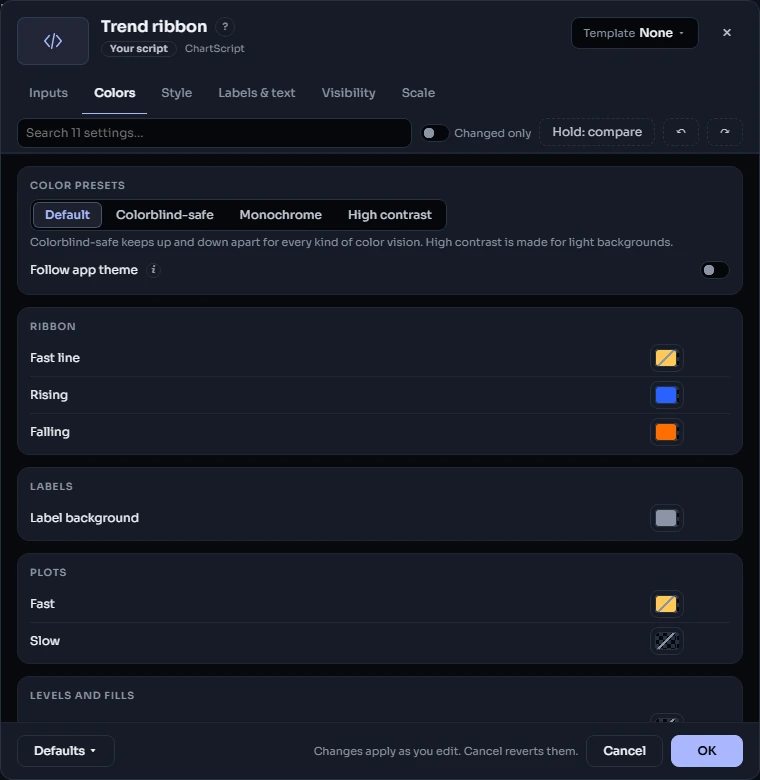
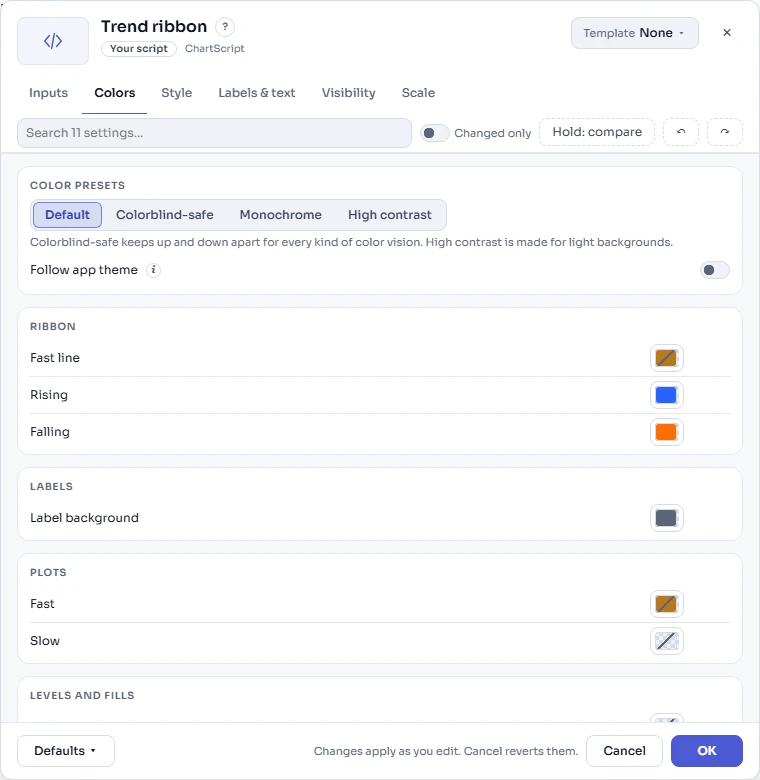
The settings dialog is the part of your script people use most. ChartDeck builds it from your code: your inputs become the Inputs tab (or your own tabs), every color lands on the Colors tab, everything you draw is listed on Style, and any text you draw can be resized on Labels & text. The settings dialog shows what members see. This page is about the few lines of code that make it work well.
#What ChartDeck does for you
You get these without writing anything:
- Colors tab. Every
input.color, and the color of every plot, marker, level, fill and style, in one list with four one-click presets (Default, Colorblind-safe, Monochrome, High contrast) and a Follow app theme switch. - Labels & text tab. As soon as your script draws a label, a box, a table or a marker with text, members get a Tiny / Small / Normal / Large / Extra-large switch for all of it, a font and a dimming control. Labels you make with
label.new,box.newandtable.newfollow it whether or not you give them a style. - Search, Changed only, resets and undo on every tab.
- A section list beside the inputs once a tab has 6 sections or 30 inputs, and a drop-down on phones.
Your part is to give the dialog structure and meaning: sections, rows, clear titles and color roles.
#Sections and rows
settings.section(id, title) starts a section; the inputs after it go in it until the next section. Sections fold, count their changes, reset on their own, and show up in the section list of a big script. A color input inside a section is listed under the same title on the Colors tab.
settings.row(id, title) … settings.end_row() puts the inputs in between side by side on one labeled row: a rising and a falling color, a "show" switch and its color, a low and a high bound.
settings.section("bands", "Bands")
const len = input.int(20, "Length", { minval: 2 })
settings.row("colors", "Band colors")
const upper = input.color(color.up, "Upper", { role: "up" })
const lower = input.color(color.down, "Lower", { role: "down" })
settings.end_row()

const mid = ta.sma(close, len)
const dev = ta.stdev(close, len) * 2
plot(mid + dev, "Upper", upper)
plot(mid - dev, "Lower", lower)
The quick way, for small scripts, is the group and inline arguments: inputs with the same group text form a section, and inputs with the same inline text share a row. Pick one way per script; settings.section also gives you an id that stays put when you rename the title, a collapsed start and help text.
const len = input.int(20, "Length", { group: "Bands" })
const upper = input.color(color.up, "Upper", { group: "Bands", inline: "colors" })
const lower = input.color(color.down, "Lower", { group: "Bands", inline: "colors" })
plot(ta.highest(high, len), "Upper", upper)
plot(ta.lowest(low, len), "Lower", lower)
For a script with many settings, add your own tabs with settings.tab(id, title) (up to 8). They replace the Inputs tab and come before Colors, Style, Labels & text and Visibility. See Inputs for notes, checks, conditions and presets.
#Color roles: make the presets right
The color presets recolor your script by role: up colors become the preset's up color, down colors its down color, neutral colors its grey, and the rest take its accent colors one after the other. When you do not say, ChartDeck guesses the role:
- a theme color has its role built in:
color.upis up,color.downis down,color.accentis an accent, andcolor.muted,color.text,color.gridare neutral; - otherwise the title: words such as bull, buy, long, rising, support, demand, above, bid make it up; bear, sell, short, falling, resistance, supply, below, ask make it down ("upper" and "lower" say nothing);
- otherwise the hue: green and teal are up, red is down, grey is neutral;
- anything else is an accent.
That guess is right for most scripts. When it is not (a blue line that means "rising", an orange one that means "falling", a title such as "Fast line" or "Color 2"), say it with role:
const bullCol = input.color(#2962FF, "Rising", { role: "up" })
const bearCol = input.color(#FF6D00, "Falling", { role: "down" })
const guideCol = input.color(color.new(color.gray, 50), "Guides", { role: "neutral" })
plot(ta.ema(close, 21), "EMA", close > ta.ema(close, 21) ? bullCol : bearCol)
hline(0, "Zero", guideCol)
role takes "up", "down", "neutral" or "accent"; any other text is error CS2014. It only steers the presets: your default colors and the member's own choices are untouched.
Outputs and named styles take the same role: plot, plotshape, plotchar, hline, fill and every style.* object. Use it for a fixed color whose hue says the wrong thing, such as a teal line that means neither up nor down (teal reads as up):
plot(ta.cci(hlc3, 20), "CCI", color.teal, 2, { role: "accent" })
const band = style.fill("Band", { color: color.new(color.teal, 90), role: "neutral" })
An output's own role wins over the role of its style.
A few things the presets never change: text and outline (halo) colors, so your labels stay readable, and the opacity of each color, so a 20 % fill stays a 20 % fill. A color that changes from bar to bar (rising ? upCol : downCol) is not flattened: its up-hued colors become the preset's up color and its down-hued ones the down color.
#Label sizes
Members choose the size of all your text at once on the Labels & text tab: Tiny (75 %), Small (87.5 %), Normal, Large (125 %) or Extra-large (150 %). The switch multiplies the size you drew with, so:
- Draw at the size that reads well at Normal:
size.small/size.normalfor labels, orsettings.defaults({ size: size.pt(10) })for the whole script. - You do not need a "label size" input of your own; the switch covers labels, boxes, tables, and markers (
plotshape/plotchar) with their text. Addinput.sizeorinput.textstyleonly when one kind of text needs its own size. - Named text styles (
style.text,style.label…, given to drawings with{ look: … }) get their own rows on the tab, so members can make, say, your signal labels bigger and leave the rest.
A style's section names the heading it is listed under on the Style and Colors tabs. Use the title of the settings.section it belongs with and its colors sit next to the inputs of that section:
settings.section("signals", "Signals")
const showSig = input.bool(true, "Show signals")
const sigLook = style.label("Signal labels", { size: size.small, section: "Signals" })
const crossUp = ta.crossover(close, ta.sma(close, 50))
if (showSig && crossUp) {
    label.new(bar_index, low, "Buy", { look: sigLook, style: label.style_label_up })
}#Before and after
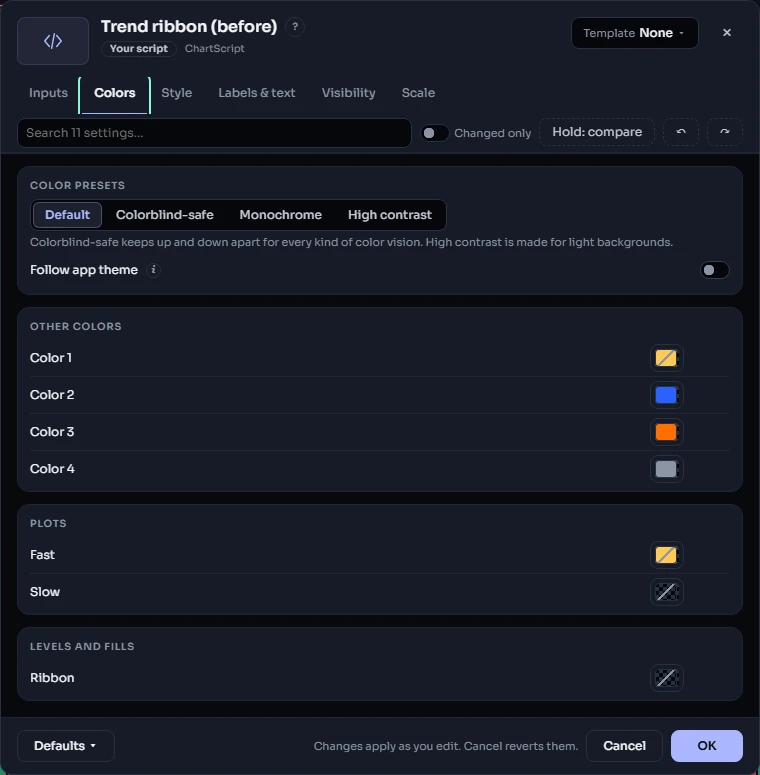
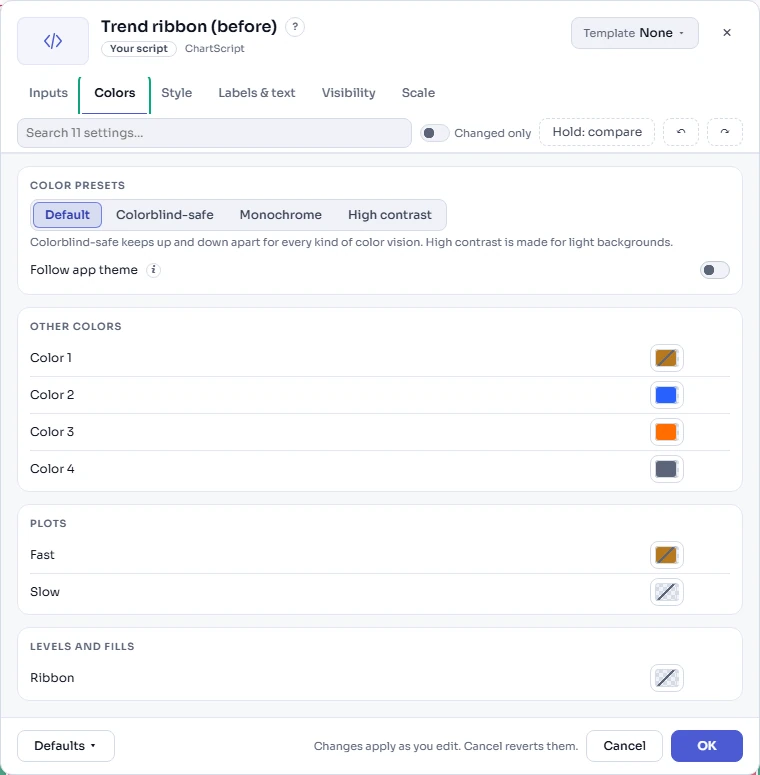
The same ribbon indicator twice. Before, the dialog is a flat list of "Color 1" … "Color 4": the Colors tab puts them all under Other colors, and Colorblind-safe treats the blue (rising) and the orange (falling) as two accents.
//@chartscript 1
indicator("Trend ribbon", { overlay: true, max_labels_count: 50 })

const fastLen = input.int(9, "Fast", { minval: 1, maxval: 200 })
const slowLen = input.int(21, "Slow", { minval: 2, maxval: 400 })
const c1 = input.color(color.amber, "Color 1")
const c2 = input.color(#2962FF, "Color 2")
const c3 = input.color(#FF6D00, "Color 3")
const shade = input.int(80, "Transparency", { minval: 0, maxval: 100 })
const showLabels = input.bool(true, "Labels")
const c4 = input.color(color.muted, "Color 4")

const fast = ta.ema(close, fastLen)
const slow = ta.ema(close, slowLen)
const rising = fast > slow
const crossed = ta.cross(fast, slow)
const trendCol = rising ? c2 : c3
const pFast = plot(fast, "Fast", c1)
const pSlow = plot(slow, "Slow", trendCol, { linewidth: 2 })
fill(pFast, pSlow, color.new(trendCol, shade), "Ribbon")
if (showLabels && crossed) {
    label.new(bar_index, rising ? low : high, rising ? "Up" : "Down", {
        color: c4,
        textcolor: color.white,
        style: rising ? label.style_label_up : label.style_label_down,
        size: size.small
    })
}
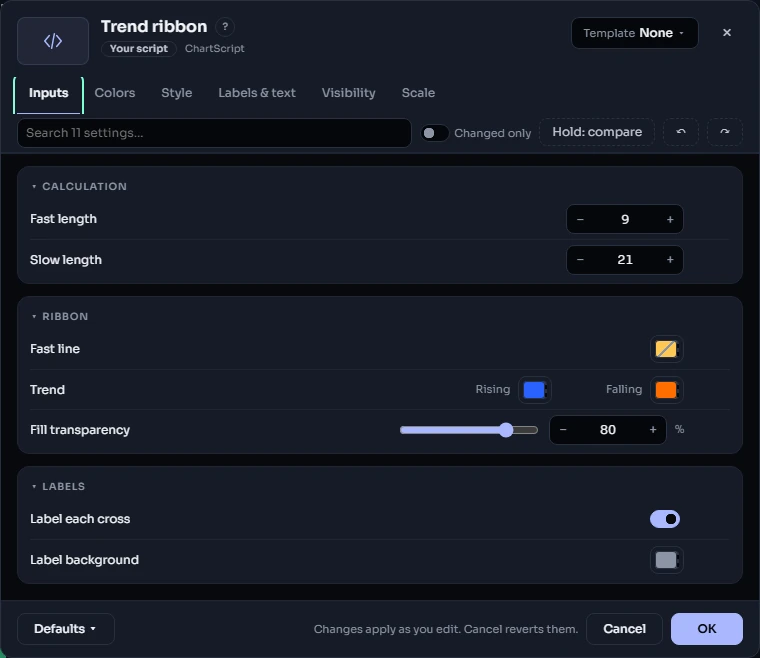
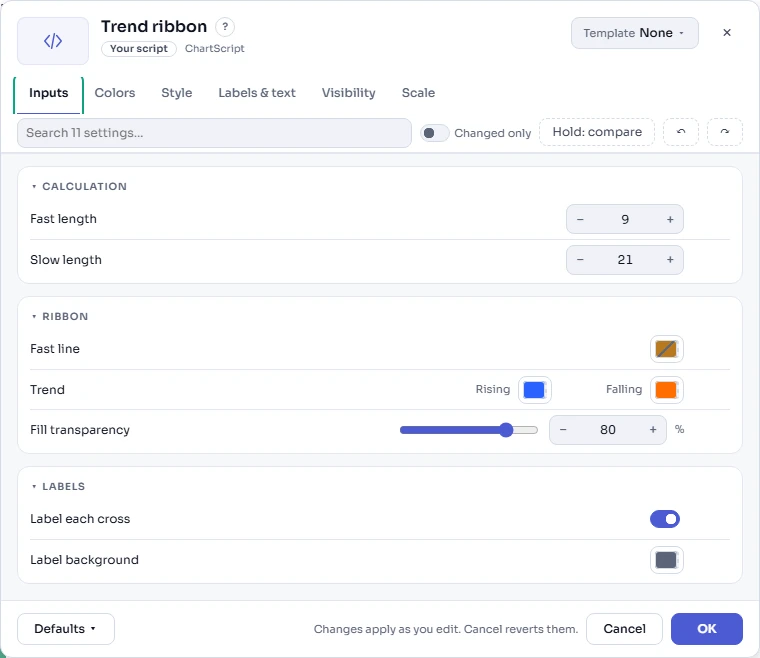
After: three sections, the two trend colors on one row, titles that say what each setting does, and a role on every color. The code that draws is the same.
//@chartscript 1
indicator("Trend ribbon", { overlay: true, max_labels_count: 50 })

settings.section("calc", "Calculation")
const fastLen = input.int(9, "Fast length", { minval: 1, maxval: 200 })
const slowLen = input.int(21, "Slow length", { minval: 2, maxval: 400 })

settings.section("ribbon", "Ribbon")
const fastCol = input.color(color.amber, "Fast line", { role: "accent" })
settings.row("trend", "Trend")
const upCol = input.color(#2962FF, "Rising", { role: "up" })
const downCol = input.color(#FF6D00, "Falling", { role: "down" })
settings.end_row()
const shade = input.int(80, "Fill transparency", { minval: 0, maxval: 100, unit: unit.percent, widget: widget.slider })

settings.section("labels", "Labels")
const showLabels = input.bool(true, "Label each cross")
const labelBg = input.color(color.muted, "Label background", { role: "neutral" })

const fast = ta.ema(close, fastLen)
const slow = ta.ema(close, slowLen)
const rising = fast > slow
const crossed = ta.cross(fast, slow)
const trendCol = rising ? upCol : downCol
const pFast = plot(fast, "Fast", fastCol)
const pSlow = plot(slow, "Slow", trendCol, { linewidth: 2 })
fill(pFast, pSlow, color.new(trendCol, shade), "Ribbon")
if (showLabels && crossed) {
    label.new(bar_index, rising ? low : high, rising ? "Up" : "Down", {
        color: labelBg,
        textcolor: color.white,
        style: rising ? label.style_label_up : label.style_label_down,
        size: size.small
    })
}
Because the variable names did not change (fastLen, slowLen, shade, showLabels), members who already use the script keep their settings when you publish the new version. Renaming a variable would reset its saved value; when you must, add settings.renamed.
#Tips
- One idea per section, about 3 to 8 inputs each. Put what to calculate first, then what to show, then the looks. Start rarely used sections closed:
settings.section("adv", "Advanced", { collapsed: true }). - Titles are what members search for. "ATR length" is found by "atr" and by "length"; "Len2" is found by nothing. A
tooltipis searched too. - Keep each color next to what it colors, in the same section, so the Colors tab reads like your Inputs tab.
- Prefer theme colors as defaults (
color.up,color.down,color.accent,color.muted): they follow the member's theme, carry their role, and Follow app theme has nothing to fix. - Do not add an input for every plot color. Every output is already listed on Style and Colors. Add
input.colorwhen the color is part of your logic (a ternary, a fill made from it) or deserves a name of its own. - Do not hide text behind your own size input. Draw at a sensible size and let the Labels & text switch do the rest.
- Keep defaults stable. Saved settings are stored by variable name; a new default only reaches members who never changed the setting.
#What members' choices save
For the curious: the dialog stores the member's script-wide choices next to their inputs, and copies them with Defaults → copy and in templates.
| Choice | Saved as | Values |
|---|---|---|
| Label and text size | *:textScale | 0.75, 0.875, 1, 1.25, 1.5 (older values from 0.75 to 2 still apply, shown as Custom) |
| Color preset | *:colorMap | colorblind, mono, contrast (none = Default) |
| Follow app theme | *:themeFollow | true |
The layout itself (tabs, sections, rows and which inputs they hold) is worked out when the script is compiled and stored with it, so a member's dialog never runs your code to draw itself.
#See also
- The settings dialog: what members see on each tab.
- Inputs: every kind of input, conditions, checks and presets.
- Style guide and Colors.