
Adding to a chart
Put a ChartScript script on a chart, change its inputs and style, use its legend row, remove it, and understand versions and layouts.
A saved script behaves like any built-in indicator: it sits on a chart, has a row in the legend, has a settings dialog, and is saved with your layout. This page covers everything after the script is written.
#Adding a script
There are two ways:
- From the editor: click Add to chart or press Ctrl+Enter (Cmd+Enter). If the script has unsaved changes, the editor saves a new version first, then adds it.
- From the Indicators dialog: open Indicators (or press
/), go to My scripts and click Add on the script's row.
Either way the script goes on the active chart, the chart you last selected in your layout. If no chart is selected you are asked to "Select a chart first."
A script counts toward your plan's number of indicators per chart, the same as a built-in one. You can add the same script more than once, for example with two different lengths.
Libraries have no Add button: a library holds functions for other scripts to use and draws nothing itself. See Libraries.
#On the price or in its own pane
Where a script draws is decided by its code, not by a setting you pick when adding it:
indicator("Name", { overlay: true })draws on the price, over the candles.indicator("Name")(overlay is false by default) draws in a new pane below the chart, with its own scale.
My scripts shows which one each script is: On the price or Own pane. You can still move a script later with the legend's ⋯ menu (Move to new pane / Move to main pane).
#The legend row
Each script on a chart has a row in its pane's legend, like the built-in indicators: the short name with its main input values, then the current values of what it plots, each behind a swatch in the plot's color. The values follow the crosshair, so you can read the script's value on any bar.
Hover the row (on a touch screen, tap it) for its controls:
- eye: hide or show the script. A hidden script stays on the chart but draws nothing.
- gear: open the settings dialog. Double-clicking the name does the same.
- ×: remove the script from the chart.
- ⋯: more, including Move up / Move down, Move to new pane or main pane, Duplicate, Reset to defaults and Remove.
The legend can also show a short note about the script, for example:
| Note | Meaning |
|---|---|
| Script runs on the last 5000 bars | The chart has more bars than your plan lets a script run on, so the oldest are left out. |
| Updating on bar close only (too slow per tick) | The script took too long on live updates twice in a row, so it now updates when each bar closes. See Limits. |
| Script deleted | You deleted the script. Restore it from Recently deleted within 30 days, or remove it from the chart. |
| Script not available | The chart has a script that you no longer have access to, or one that does not exist. |
#The settings dialog
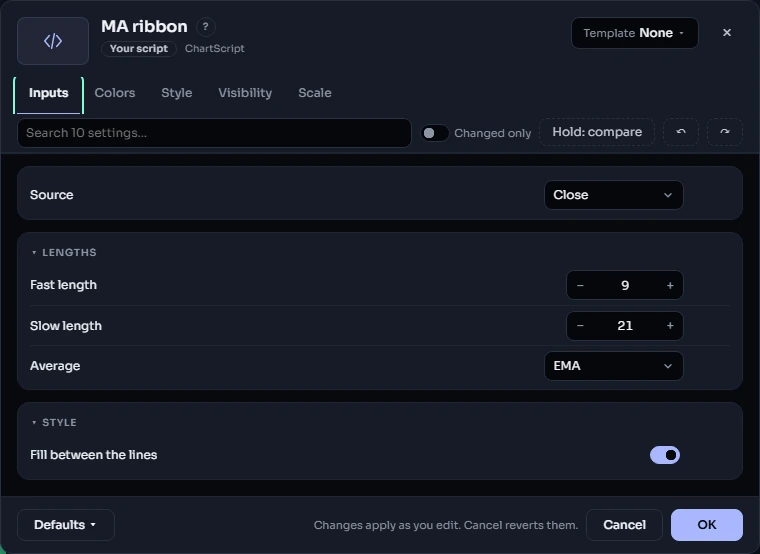
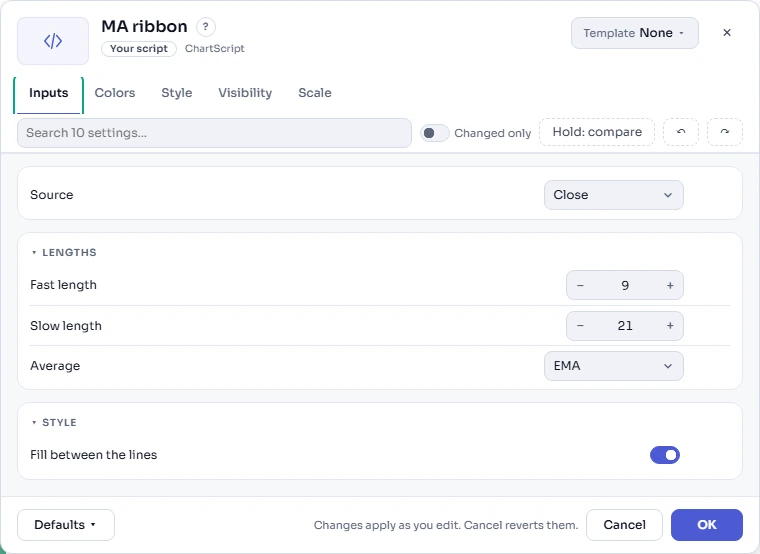
Open it with the legend's gear or by double-clicking the script's name. The dialog has the same frame as for built-in indicators (with Template, Defaults, Cancel and OK), and the script fills in the rest. Its tabs are Inputs (or the script's own tabs), Colors, Style, Labels & text (when the script draws text) and Visibility; The settings dialog walks through each of them.
#Inputs
Every input.* call in the script becomes a control in the Inputs tab: a number box for input.int and input.float, a color swatch for input.color, a source menu for input.source, a checkbox for input.bool, and so on. The control is labeled with the input's title, and a group puts related inputs under a heading.
//@chartscript 1
indicator("Price channel", { overlay: true })
const length = input.int(20, "Length", { minval: 2, group: "Channel" })
const src = input.source(close, "Middle source", { group: "Channel" })
const upColor = input.color(color.up, "Upper line", { group: "Colors" })
const downColor = input.color(color.down, "Lower line", { group: "Colors" })
const upper = ta.highest(high, length)
const lower = ta.lowest(low, length)
plot(upper, "Upper", upColor)
plot(lower, "Lower", downColor)
plot(ta.sma(src, length), "Middle", color.muted)
Changing an input re-runs the script on the chart straight away, so you see the effect before you press OK. Cancel puts everything back exactly as it was.
Each control shows a small dot when it differs from the script's default, and can be reset to its default on its own. A search box finds a setting by name on every tab (a script with many sections also gets a section list beside its inputs), Changed only hides the rest, and holding Hold: compare shows the defaults on the chart while you hold it. Undo and redo work inside the dialog (Ctrl+Z, Ctrl+Shift+Z).
The Inputs page explains every kind of input and how to give your script a tidy settings dialog.
#Colors
The Colors tab lists every color of the script in one place, grouped by section: its color inputs and the color of everything it draws. The presets on top recolor the whole script in one click (Default, Colorblind-safe, Monochrome, High contrast; Ctrl+Z takes a preset back), and Follow app theme keeps fixed colors readable on a dark or a light chart.
#Style
The Style tab lists everything the script draws (each plot, shape, level and fill) with its visibility, color, opacity, line width and other options. Changing style never re-runs the script; it only repaints.
#Labels & text
When a script draws text (labels, boxes, tables or markers with text), the Labels & text tab sets the size of all of it at once (Tiny, Small, Normal, Large, Extra-large, with a preview), its font and dimming, and the look of each named text style.
#Copying settings
The Defaults menu can copy your settings and paste them into another copy of the same script, copy them as text to share (the text starts with CDSET1:), paste from text, and apply them to every copy of the script in the layout. Template saves the settings under a name so you can apply them again later, as with built-in indicators.
#Removing a script
Click × on its legend row, or choose Remove in the row's ⋯ menu. With the row focused you can also press Delete. Removing is part of the chart's undo history, so Ctrl+Z brings it back with its settings.
Removing a script from a chart does not delete the script: it stays in My scripts.
#Which version a chart runs
Normally a chart runs the latest saved version of your script. When you save a new version, charts that have the script pick it up and run the new code, keeping your input settings.
Sometimes a new version changes the script's settings (an input renamed, a setting removed). The settings dialog then shows a banner such as "Updated to version 4: 1 renamed, 0 converted, 0 reset, 0 no longer used." with a Keep version 3 button. Click it to keep this chart on the older version ("This chart stays on version 3."). Versions that a chart is kept on are never removed by the version limit; see Saving and versions.
A Community script that someone else wrote runs the version its author published, not their private newer saves.
#Scripts in layouts
A script on a chart is saved with the layout, exactly like a built-in indicator, together with its input values and style. When you open a saved layout, reload the page or sign in on another device, your scripts come back with the same settings. Templates and the undo history keep script settings too.
If a layout contains a script you no longer have (deleted for good, or a Community script that was unpublished or whose author removed your access), the script keeps its place in the layout but draws nothing, and its legend row says why.