

Plots
Draw values on the chart with plot(): styles, line widths and dashes, per-bar colors, offsets, where values show, named styles and the 128-plot cap.
A plot is the most common thing a script draws: one value per bar, joined into a line, a histogram, a row of dots or a shaded area. Moving averages, oscillators, bands and volume bars are all plots.
You make one with plot. It takes the value to draw (a series), and optionally a title, a color and a set of style arguments. It returns a plot handle you can pass to fill to shade the space between two plots (see Fills).
#A first plot
//@chartscript 1
indicator("Fast and slow averages", { overlay: true })
const fastLen = input.int(9, "Fast length", { minval: 1 })
const slowLen = input.int(21, "Slow length", { minval: 1 })

const fast = ta.ema(close, fastLen)
const slow = ta.ema(close, slowLen)

plot(fast, "Fast", color.accent, 2)
plot(slow, "Slow", color.muted, 1)
The first three arguments can be given by position: the series, the title and the color. The fourth is linewidth. Everything after that is clearer by name, in an options object as the last argument: { style: plot.style_columns }.
The title matters more than it looks. It is the name the person using your script sees in the legend, the data window and the Style tab of the settings, so give every plot a short, distinct title.
#The arguments
| Argument | What it does | Default |
|---|---|---|
series | The value to draw on each bar. na draws nothing on that bar. | required |
title | The name in the legend, data window and Style tab. | "" |
color | A constant color, or a different color on each bar. | the theme color |
linewidth | Line width in pixels. For plot.style_histogram it is the bar width. | 1 |
style | How the values are drawn: one of the plot.style_* constants below. | plot.style_line |
base | plot.style_range only: the other end of the bar on each bar. | none |
color_below | plot.style_baseline only: the color below histbase. | color.down |
linestyle | Solid, dashed or dotted line (plot.linestyle_*, dash.* or dash.custom(...)). | solid |
offset | Shift the plot this many bars right (negative: left). | 0 |
histbase | The base level that histograms, columns and areas are drawn from. | 0 |
display | Where the value shows: pane, legend, price scale, data window (display.*). | display.all |
format, precision | How the value is written in the legend and on the scale. | the script's |
show_last | Draw only the last N bars. | all bars |
autoscale | false: draw the plot, but leave it out of the price scale's Auto range (see below). | true |
look, variant | Give the plot a named style made with style.plot (see below). | none |
editable, join and force_overlay are accepted so that code written for other charting script languages compiles, but they change nothing: every plot is always editable in the Style tab, and a plot always draws in its script's pane. trackprice: true draws a dotted horizontal line at the plot's last value across the whole pane, in the plot's color, and puts that value in a tag of the same color on the price scale.
#Plot styles
The style argument picks the shape of the plot.
| Constant | Draws |
|---|---|
plot.style_line | A continuous line. Bars where the value is na are bridged. |
plot.style_linebr | A line that breaks where the value is na. |
plot.style_stepline | Horizontal steps from value to value. |
plot.style_steplinebr | Steps that break at na. |
plot.style_stepline_diamond | Steps with a small diamond on each value. |
plot.style_area | A line with the area down to histbase lightly shaded. |
plot.style_areabr | An area that breaks at na. |
plot.style_histogram | Thin bars from histbase to the value; linewidth sets their width. |
plot.style_columns | Wide bars from histbase to the value (about 70% of the bar spacing). |
plot.style_circles | A dot at each value, nothing in between. |
plot.style_cross | A small cross at each value. |
plot.style_baseline | An area around histbase in two colors: color above it, color_below below it. |
plot.style_smooth | A smooth curve through the values. Bars where the value is na are bridged. |
plot.style_smoothbr | A smooth curve that breaks where the value is na. |
plot.style_markers | A line with a dot on every value. |
plot.style_lollipop | A thin stem from histbase to the value, with a dot at the value. |
plot.style_range | A floating bar from the value to base on each bar. |
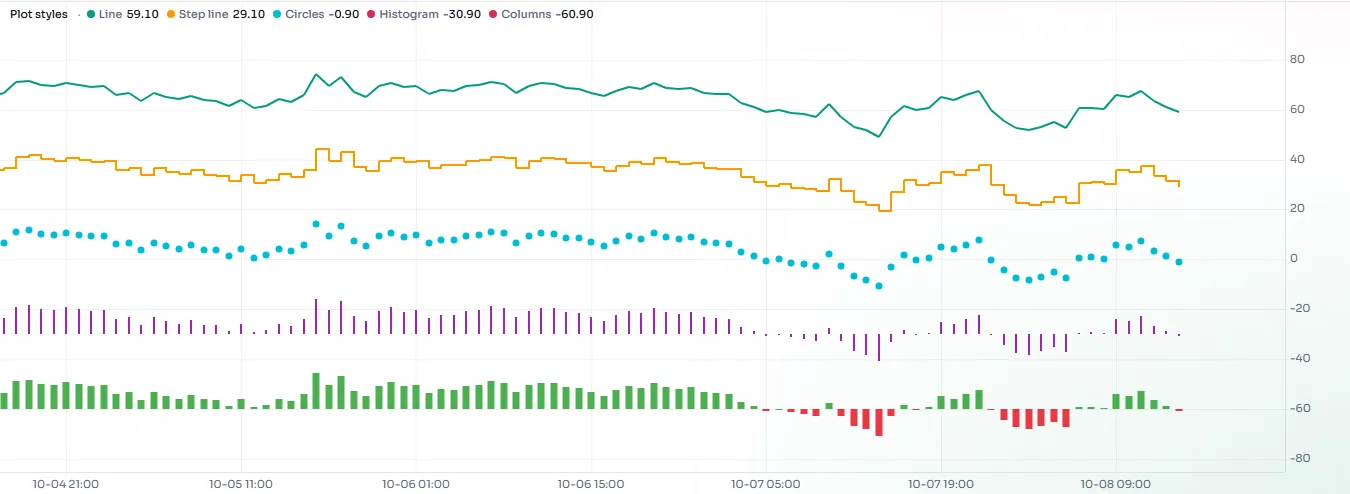
This script draws five of them in one pane, each on its own band, so you can compare them:
//@chartscript 1
indicator("Plot styles", { overlay: false })
// one oscillator, drawn five ways on separate bands of the pane
const osc = ta.rsi(close, 14) - 50

plot(osc + 200, "Line", color.accent, 2)
plot(osc + 100, "Step", color.orange, 1, plot.style_stepline)
plot(osc / 2, "Columns", osc >= 0 ? color.up : color.down, { style: plot.style_columns })
plot(osc - 100, "Histogram", color.muted, 2, plot.style_histogram, { histbase: -100 })
plot(bar_index % 3 == 0 ? osc - 200 : na, "Circles", color.purple, 2, plot.style_circles)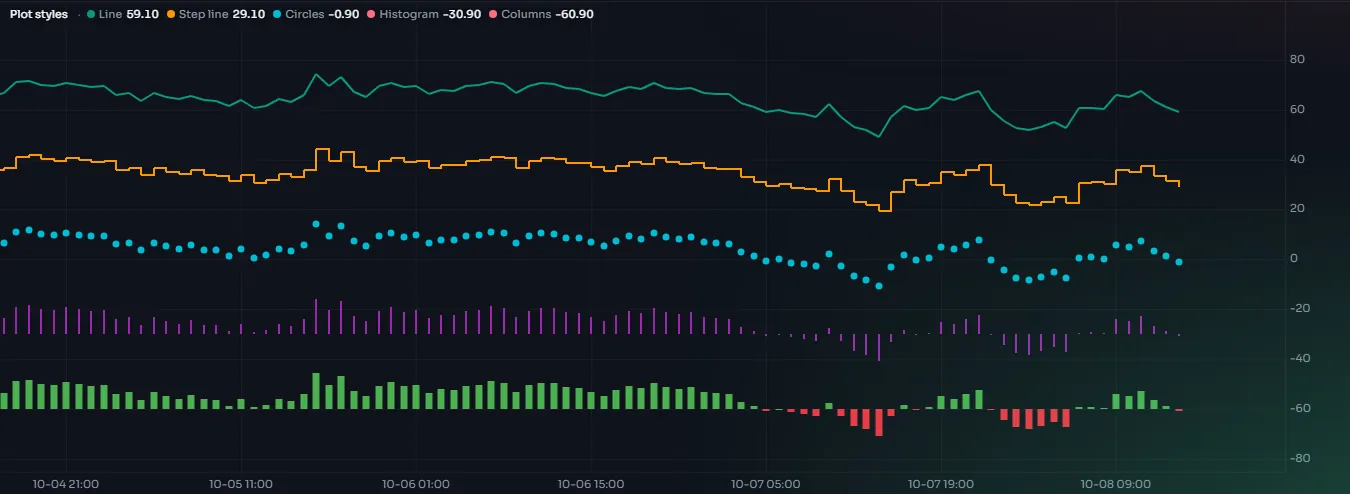
#Baseline, smooth, markers, lollipop and range
Five styles show a series in ways a plain line cannot. This script draws the same oscillator with each of them:
//@chartscript 1
indicator("More plot styles", { overlay: false })
// one oscillator, drawn five more ways on separate bands of the pane
const osc = ta.rsi(close, 14) - 50

// two colours around a base level: green above 200, red below it
plot(osc + 200, "Baseline", color.up, 2, { style: plot.style_baseline, histbase: 200, color_below: color.down })
// a value on every fourth bar only: the curve bridges the bars in between
plot(bar_index % 4 == 0 ? osc + 100 : na, "Smooth", color.accent, 2, plot.style_smooth)
plot(osc, "Markers", color.orange, 1, plot.style_markers)
plot(osc - 100, "Lollipop", osc >= 0 ? color.up : color.down, { style: plot.style_lollipop, histbase: -100 })
// a bar from the highest to the lowest value of the last five bars
plot(ta.highest(osc, 5) - 200, "Range", color.purple, { style: plot.style_range, base: ta.lowest(osc, 5) - 200 })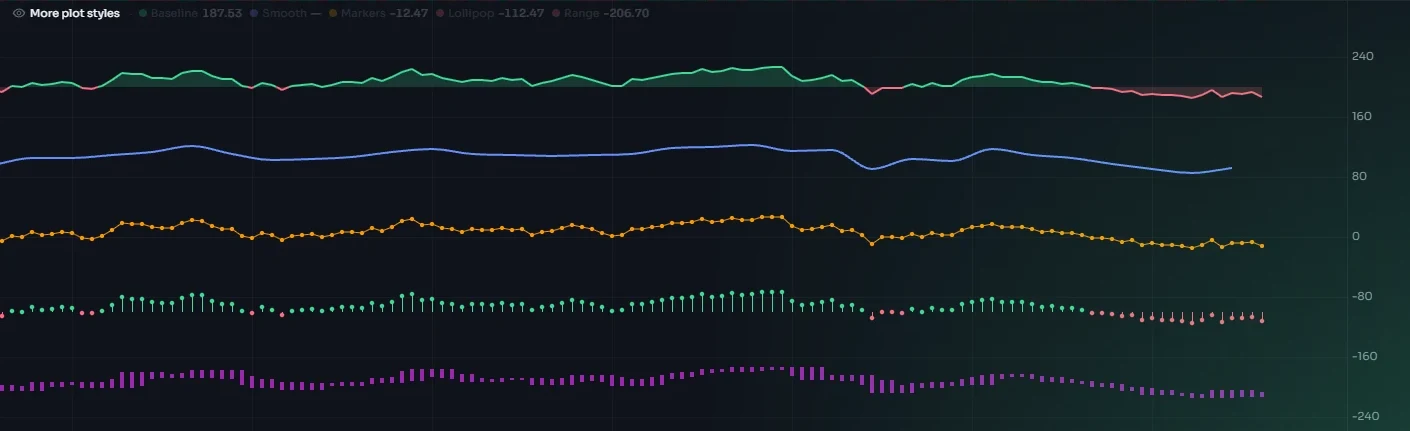
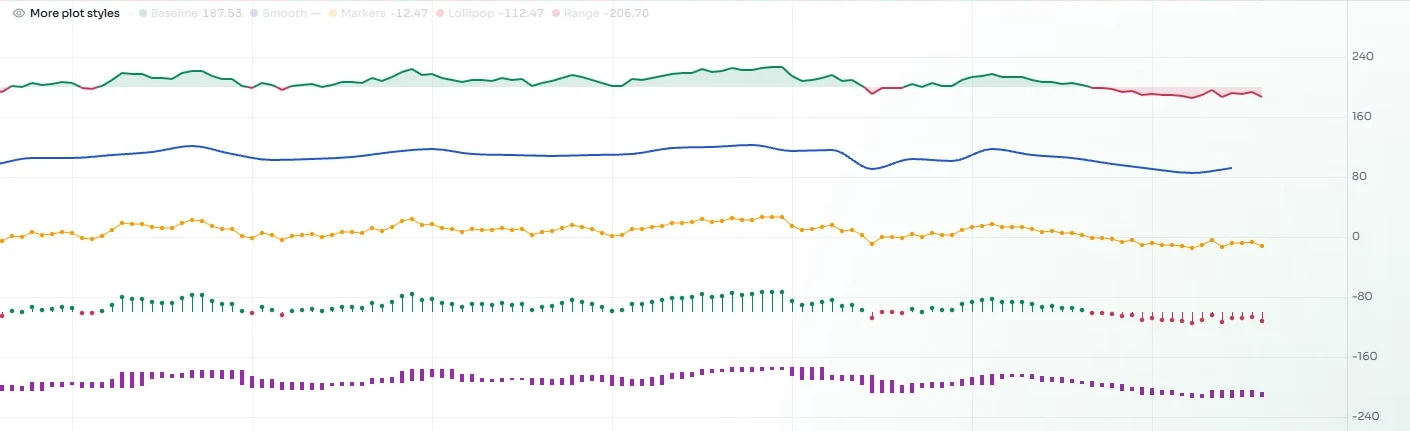
plot.style_baselinefills the space between the line andhistbaseand colors each side on its own:colorwhere the value is above the base,color_belowwhere it is below (when you leavecolor_belowout it iscolor.down). Where the line crosses the base, the line and the fill change color exactly at the crossing. Use it for anything that swings around a level: a spread, net flow, an oscillator around zero.plot.style_smoothjoins the values with a curve instead of straight pieces. The curve passes through every value and never rises above or falls below the two values it joins, so it does not invent a high or a low. It suits series with a value only now and then (a higher-timeframe value, pivots) and slow averages.plot.style_smoothbrbreaks atnalikeplot.style_linebr.plot.style_markersisplot.style_linewith a dot on each value, which shows where the real data points are. When you zoom far out the dots are left out and the line remains.plot.style_lollipopdraws a thin stem fromhistbaseto each value with a dot on top. It reads like a histogram but stays light when many bars are on screen, and each bar can have its own color.plot.style_rangedraws a bar between two series on every bar: the plot's own series and the one you give asbase. It is the style for a high and a low, a band, or a forecast range. Withoutbasethe bar starts athistbase.
base and color_below are arguments of plot, given by name like the other options. The other styles ignore them.
In the Style tab a member can also switch any plot to baseline area, smooth line, line with markers or lollipop (and back). Range bars are not in that list, because they need the second series from the script.
#Breaks and gaps
A value of na means "nothing on this bar". What happens next depends on the style. plot.style_line carries on from the last real value to the next one, which suits a series with a few missing bars. The br styles (linebr, steplinebr, areabr) leave a gap instead, which is what you want for a line that should only exist some of the time, like a trailing stop that switches sides:
//@chartscript 1
indicator("Two-sided stop", { overlay: true })
const len = input.int(20, "Length", { minval: 2 })
const mid = ta.sma(close, len)
const band = ta.atr(len) * 2

// only one of these two has a value on any bar
plot(close > mid ? close - band : na, "Long stop", color.up, 2, plot.style_linebr)
plot(close <= mid ? close + band : na, "Short stop", color.down, 2, plot.style_linebr)#Color on every bar
color can change from bar to bar. Give it any expression that produces a color, typically a conditional:
const hist = ta.ema(close, 12) - ta.ema(close, 26)
const grow = hist > nz(hist[1])
plot(
    hist,
    "Momentum",
    hist >= 0 ? (grow ? color.up : color.new(color.up, 50)) : grow ? color.new(color.down, 50) : color.down,
    { style: plot.style_columns }
)
A color that is na on a bar hides the plot on that bar. A constant color: na hides the plot everywhere, which is occasionally useful for a plot that only exists to anchor a fill.
#Line styles and dashes
linestyle draws a line dashed or dotted. You can use the three classic constants or the dash.* set, which has a few more patterns and lets you design your own:
| Value | Pattern |
|---|---|
plot.linestyle_solid, dash.solid | Solid |
plot.linestyle_dashed, dash.dashed | Dashes |
plot.linestyle_dotted, dash.dotted | Dots |
dash.dashdot | Dash, dot |
dash.long | Long dashes |
dash.custom(6, 3, 1, 3) | Your own: dash, gap, dash, gap ... in pixels (up to 8 segments, each 0.5 to 32 px) |
//@chartscript 1
indicator("Dashed guide lines", { overlay: true })
const mid = ta.sma(close, 50)
plot(mid, "Basis", color.accent, 2)
plot(mid * 1.02, "Upper guide", color.muted, 1, { linestyle: plot.linestyle_dashed })
plot(mid * 0.98, "Lower guide", color.muted, 1, { linestyle: dash.custom(6, 3, 1, 3) })#Offset
offset shifts the whole plot sideways by a number of bars. A positive offset moves it right, into the future; ChartDeck draws the part past the last bar in the empty space on the right of the chart. A negative offset moves it left.
//@chartscript 1
indicator("Displaced average", { overlay: true })
const shift = input.int(10, "Shift (bars)", { minval: -100, maxval: 100 })
plot(ta.sma(close, 20), "Displaced SMA", color.orange, 2, { offset: shift })
offset must be known before the script runs: a number, an input, or simple arithmetic on them (+ - * and int()). Changing an offset input does not re-run the script; the chart simply redraws.
#Where the value shows
Every plot can appear in four places: drawn in the pane, as a number in the status line (the legend at the top of the pane), as a label on the price scale, and in the data window. display picks which:
| Constant | Shows the plot in |
|---|---|
display.all | Everywhere (the default) |
display.none | Nowhere; the plot still exists and can be filled or referenced |
display.pane | The pane only |
display.status_line | The legend only |
display.price_scale | The price scale label only |
display.data_window | The data window only |
You can combine them with + and -. For example, display.all - display.status_line keeps a busy helper line out of the legend, and display.pane + display.data_window keeps it off the price scale:
plot(ta.sma(close, 200), "Long-term average", color.muted, 1, { display: display.all - display.status_line })display can also come from an input, such as show ? display.all : display.none, or display.all - (hideTag ? display.price_scale : display.none). The person using your script then turns the plot on and off without the script running again. Each copy of the indicator follows its own settings: the line, its fill, background and bar colours, its legend value and its price-scale tag. A plot whose display an input chooses always counts toward the pane's automatic range, even while it is hidden.
The input has to reach display directly, through a variable set once, or through ?:, &&, ||, !, comparisons and + / - of display.* values. A function call, a switch or a variable that is reassigned cannot follow the settings: the compiler stops at that line with CS2712 or CS2104, so a display is never fixed at its default without a word.
#Number format and precision
format and precision decide how the plot's value is written in the legend, data window and price scale.
format | Shows |
|---|---|
format.price | A price, with precision decimals |
format.percent | A percentage |
format.volume | A large number shortened (for example 1.2M) |
format.mintick | Treated like format.price |
format.inherit | Whatever the script declared in indicator() |
plot(ta.roc(close, 10), "Rate of change", color.accent, { format: format.percent, precision: 2 })#Show only the last bars
show_last: N draws only the last N bars of a plot, handy for a level that only matters near the current price. The person using the script can change it in the Style tab.
plot(ta.highest(high, 50), "Recent high", color.up, 1, plot.style_stepline, { show_last: 30 })#Keep a plot out of the price scale
On the price chart, Auto fits the price scale to the candles only, so the scale is the same with or without your script: no plot, line, box or label widens it. Where a plot or drawing runs past the top or bottom of the pane it is cut off, and it keeps a tag with an arrow at that edge of the price scale (hover it for the name and price). A person can opt one indicator back in with Price scale: Always fit on the Scale tab of its settings; then every plot of it counts, except a plot written with autoscale: false, which stays out of the scale even then.
const monthly = ta.vwap(hlc3, timeframe.change("1M"))
plot(monthly, "Monthly VWAP", color.muted, 2, { autoscale: false })
plot(ta.ema(close, 21), "EMA 21", color.accent)
autoscale takes true or false written in the code, not an input.
#Inputs as style
Most style arguments may be inputs: color, linewidth, linestyle and display. They are applied on the chart, so when someone changes such an input the plot is restyled at once and the script does not run again. style may be an input too (directly, or through a function of inputs); the chart then draws the plot in the style of its last value. input.linestyle gives a dash picker:
//@chartscript 1
indicator("Styled average", { overlay: true })
const len = input.int(34, "Length", { minval: 1 })
const col = input.color(color.orange, "Colour")
const width = input.int(2, "Width", { minval: 1, maxval: 4 })
const dashes = input.linestyle(dash.solid, "Line style")
plot(ta.ema(close, len), "EMA", col, width, { linestyle: dashes })
Whatever you write, every plot also appears in the Style tab, where the user can override its color, opacity, width and dash.
#Named styles: look and variant
When several outputs should share one look, describe it once with style.plot and pass it as look =. The Style tab then shows one entry for the whole group, so the user restyles all of them in one place. style.variant adds named variations of a look, such as a bullish and a bearish color; each output picks one with variant =.
//@chartscript 1
indicator("Trend averages", { overlay: true })
const trend = style.plot("Trend lines", { color: color.accent, width: 2 })
style.variant(trend, "bull", { color: color.up })
style.variant(trend, "bear", { color: color.down })

plot(ta.ema(close, 20), "EMA 20", { look: trend, variant: "bull" })
plot(ta.ema(close, 50), "EMA 50", { look: trend, variant: "bear" })
plot(ta.ema(close, 100), "EMA 100", { look: trend, linewidth: 1 })
An argument written next to look = wins over the style, so the third line above is thinner but keeps the shared color. style.plot and style.line suit plots and hlines; giving a plot a style of another kind is error CS2725.
#Candles, bars and arrows
Three more plot functions draw price-like data in the script's pane:
plotcandledraws candles from four series (open, high, low, close), withcolor,wickcolorandbordercolor, each of which may change per bar.plotbardraws OHLC bars from the same four series.plotarrowdraws an up arrow for a positive value and a down arrow for a negative one, longer for bigger values (betweenminheightandmaxheightpixels), coloredcolorup/colordown.
This script draws Heikin Ashi candles in their own pane:
//@chartscript 1
indicator("Heikin Ashi pane", { overlay: false })
const haClose = (open + high + low + close) / 4
state haOpen: float = na
haOpen = na(haOpen[1]) ? (open + close) / 2 : (haOpen[1] + haClose[1]) / 2
const haHigh = math.max(high, math.max(haOpen, haClose))
const haLow = math.min(low, math.min(haOpen, haClose))
plotcandle(
    haOpen,
    haHigh,
    haLow,
    haClose,
    "Heikin Ashi",
    haClose >= haOpen ? color.up : color.down,
    { wickcolor: color.muted }
)
For markers and characters on signal bars, see Text and shapes.
#How many plots
A script may have up to 128 plots. Every call of plot, plotshape, plotchar, plotarrow, plotcandle and plotbar counts as one. Levels (hline), fills, background colors and bar colors do not count. Going over the cap is error CS3001.
Plot calls must be at the top level of the script, not inside an if, a loop or a function: the chart needs to know every plot before the script runs, and a plot in a branch is error CS3007. To show a plot only some of the time, give it na on the bars where it should be hidden, or use a display input.
//@chartscript 1
indicator("Inside a branch")
if (close > open) {
    plot(close)
}
See the limits page for every cap in one place.